0:00
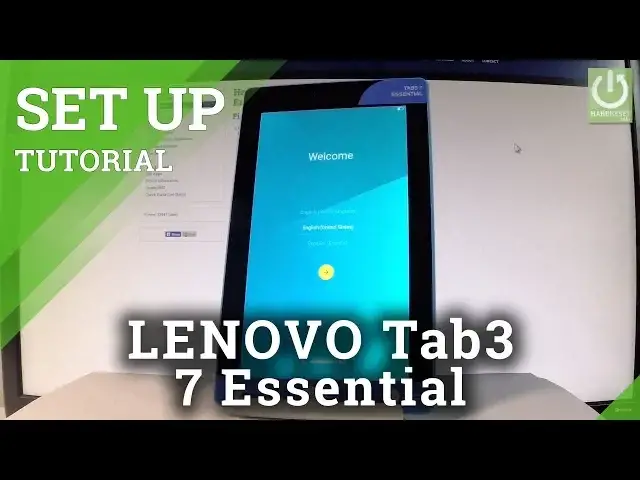
Here I have Lenovo Tab 3 and let me show you how to go through the initializing setup process
0:09
on the following device. So simply how to activate this phone or this tablet
0:14
At the very beginning let me start by using the welcome panel. Here you have full list of available languages that you can use on your device
0:21
In my case let me choose English for instance from United States. You may also choose emergency call to make some emergency calls if you need
0:29
If not let's go back. Then let's tap next by using that yellow arrow right here
0:37
You can insert sim card but you can also activate your device without the sim card so let me
0:41
do it that way. Let me tap skip. You can also select device, select the WiFi network
0:49
Here you have the full list of available WiFi's. In that it's not necessary you can bypass this step by tapping skip but I do usually
0:56
recommend connecting to a WiFi, it's always a good idea so let me do it
1:01
The device is obtaining IP address and the tablet is connected. The tablet is checking connection, this can take up to 2 minutes, let's wait
1:14
The device is looking for any updates
1:26
And now you can add a Google account to your device. It's also not necessary you can bypass this step by tapping skip or if you would like
1:34
to add a Google account you can do it in two ways, you can create a new one by using that
1:39
blue link or use an existing one. So let me use an existing one, let's input an email
1:59
If you are ready let's tap next. Now we have to enter a password so let me do it, let's wait a few seconds
2:14
Then let's choose next. If everything is alright let's accept terms of services and privacy policy
2:37
Then the tablet is asking you to setup payment information, you don't have to do it, you
2:41
can choose no thanks and tap continue
3:05
Here we've got some information about backups, you can restore some apps and data from your
3:11
other devices or you can choose next and choose setup as a new device, tap done and tap next
3:24
in my case. You can protect your tablet by using a screen lock or you can do it later by using settings
3:29
so let me do it later, let me tap skip for now, choose skip anyway
3:34
Here we've got some features from Google services, you can for example enable or disable backup
3:40
your tablet's apps, app data, settings, personal dictionaries and wifi passwords. You can use Google's location service to help apps determine your location, you can help
3:50
improve location services or you can help improve your android experience. Let me leave all of these features enabled and let's tap more and next
4:02
Here you should input your name and some credentials to lenovo ID but you can bypass this step
4:09
by tapping that arrow and by choosing start using your device
4:31
As you can see the welcome message has popped up, let's tap got it and the home screen is
4:35
already on your phone. So now you may start using your device
4:39
Thank you for watching, please subscribe our channel and leave thumbs up under the video