
0:00
Hello everybody. Welcome back to the
0:02
reset info channel. In today's video,
0:04
I'll show you how to fix Wi-Fi not
0:05
working on your OnePlus Node 6.
0:12
So, first what you guys want to do is
0:13
toggle Wi-Fi off and on. So, we're going
0:15
into the settings. Now, in the settings,
0:19
we're going into Wi-Fi. And here we need
0:22
to turn it off and turn it on. Now,
0:26
after that, what are we going to do is
0:27
we're going to forget and reconnect to
0:29
the network setting if the issue still
0:31
persists. So, we're going to press on
0:32
our um saved and connected network.
0:35
We're going to press on the I icon right
0:37
here. And now, we're going to click on
0:40
forget here. We're going to click on
0:41
remove and we need to um connect back to
0:46
the network. So, we simply just um enter
0:49
the password, click on save, and as you
0:52
guys can see, we're back. What we're
0:54
going to do next is we're going to
0:55
restart the router and a phone. So, to
0:58
restart the router, it's a bit of a
1:00
different way here because to restart
1:03
the router, all you need to do um is
1:06
find a switch on the back of it, turn it
1:08
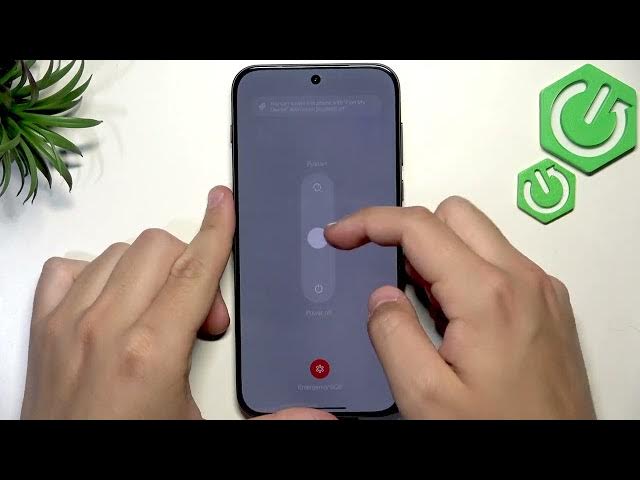
off and turn it on. For a phone though,
1:11
you can press the power button and
1:13
volume up button, swipe up to restart,
1:17
and it is restarting now. So, finding a
1:19
switch on a router is pretty easy. Every
1:21
router is different, so there's no um
1:24
the central point, but of course, you
1:27
can find it on the back or on the sides.
1:29
Now, we're waiting for our phone to turn
1:31
back on. So, I'll see you guys in a
1:38
Now, after restarting the phone and the
1:40
router, what we're going to do is we're
1:41
going to check for software updates. So,
1:43
open up the settings and scroll down
1:45
until you see system and update. Here
1:48
you need to press on software update and
1:51
as you guys can see it is looking for
1:53
updates. Now I would recommend um having
1:55
your phone on the latest version just
1:57
like me because it is very important to
2:00
get the latest version so there's no old
2:02
glitches on your device. Now of course
2:05
as a last resort what are we going to do
2:07
is going to go over and leave the
2:09
software update. Go to backup and reset
2:12
and press on reset phone. Here we're
2:15
pressing on reset network and Bluetooth
2:18
settings. We enter our lock screen
2:20
password. Click on reset and as you guys
2:23
can see it is resetting just like this.
2:26
So now after the reset everything will
2:28
work. So that's it for the video. I hope
2:31
it was helpful. If it was leave a like,
2:33
subscription and a comment and I'll see
2:35
you in the next one. Bye.
