0:00
Hello everyone and welcome back to our
0:02
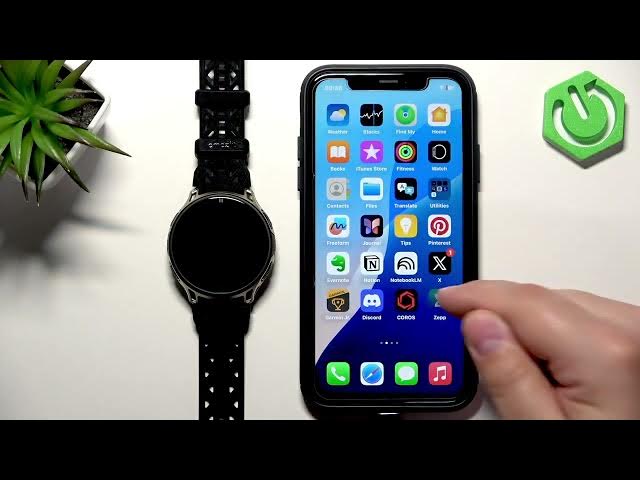
channel. In front of me I have Masfit
0:05
Cheetah 2 Pro and today I'm going to
0:07
show you how to enable the phone
0:08
notifications for this watch on the
0:10
iPhone. Basically if you want to receive
0:12
the notifications from your iPhone on
0:16
So let's get started.
0:22
So if you want to receive the
0:24
notifications from your iPhone on your
0:25
watch, your watch needs to be paired
0:26
with your iPhone via the Zap
0:28
application. And once the devices are
0:30
paired together, we can continue and we
0:32
can open this app application on the uh
0:34
iPhone that is paired with our watch.
0:37
No, before that, never mind. And before
0:39
that, we need to go to settings. I
0:41
forgot. Um, so basically we need to
0:43
check if the permissions required
0:45
permissions are allowed for the iPhone
0:47
to send the notifications to your watch.
0:49
And to do that, open the settings,
0:54
and in the Bluetooth menu, you will see
0:56
your Cheetah 2 Pro right here on the
0:58
list of my devices. Tap on the info icon
1:00
next to it. And here on this page, you
1:02
should see this option, share system
1:04
notifications. And this option needs to
1:05
be enabled for the notifications uh to
1:08
work. If it's disabled, enable it. And
1:11
if it's missing, because it's possible
1:12
you're missing this option right here.
1:14
You need to close the settings. And then
1:16
open the app application.
1:23
and look for the popup on the screen.
1:26
Basically, at some point, you should see
1:27
the popup about the permissions for the
1:29
notifications. Uh, and if you see it,
1:32
allow it. But if you don't see it right
1:34
now, you can go to the device page, go
1:36
to the notifications. Um, if the
1:39
notifications are disabled, enable them.
1:41
Uh, if they're disable enabled, disable
1:43
them and then enable them. And again at
1:45
some point you should see the popup
1:46
about the notifications permissions and
1:49
allow all of them and once you allow
1:50
them the options should be there. So if
1:52
you go to settings uh Bluetooth
1:56
info icon next to cheetah pro you should
1:59
see it right now and make sure it is
2:01
enabled. And once this option is enabled
2:03
we can go to the app application again
2:05
and now we can basically uh customize
2:07
the settings for our notifications. So
2:08
we can go to device notifications and
2:11
here we can turn them on or off as the
2:13
whole thing and then we have we have the
2:16
app notifications and here you can turn
2:18
on and off the notifications for the
2:19
applications on your uh phone
2:22
and you have also notifications from
2:25
your watch and you can also enable them
2:26
and disable them as you can see. Uh
2:28
let's go to the app notifications. And
2:34
we can enable them or disable them as
2:36
well. And we can also enable and disable
2:38
some of the options like follow DND
2:40
phone or phone DND rather. Basically if
2:42
you if the do not disturb mode is
2:44
enabled on your phone, it will basically
2:46
work also on your watch. So the
2:48
notifications will be muted on your
2:49
watch as well. Uh in workouts uh of
2:53
wrist. So if you enable this option and
2:54
you're not wearing your watch, it will
2:56
mute the notifications. You can also tap
2:59
on preferences here and you have more
3:00
options as you can see um like auto show
3:04
show following notifications
3:06
uh turn rest to show full notification
3:08
screen on upon notification quite a few
3:15
uh option category called receive
3:17
notification from and we have incoming
3:18
SMS email and phone apps and you can
3:21
enable them and disable them and if you
3:23
enable the phone apps you will see the
3:24
list of applications uh on your
3:29
uh iPhone and you can enable and disable
3:31
the notifications for them by tapping on
3:33
the switch next to one. Uh you can also
3:36
um allow all of them at at the same time
3:39
by tapping on allow all. Um and if the
3:42
notifications are enabled for let's say
3:43
Discord, you receive the notification
3:45
from Discord on your uh iPhone that
3:47
notification will be forwarded uh to
3:49
your watch. But if you disable it, it
3:51
won't be forwarded to your watch. It
3:52
will only appear on your phone. Also
3:55
this list a bit limited as you can see
3:58
but it will fill in with notifications
4:00
or rather applications later on.
4:02
Basically when you receive the
4:03
notification from the app and you have
4:07
the zip application installed the app
4:09
should appear right here on the menu. So
4:10
it will fill in later on. Okay. And now
4:14
it should be working. So I'm going to
4:16
test test it by sending myself message
4:18
on discord. The discord was enabled
4:20
there in the notifications settings. So
4:22
if I sending message,
4:26
it should pop up on our iPhone and on
4:29
our watch as well. And it did. So it is
4:32
working. And that's how you enable the
4:34
phone notifications for this watch on
4:36
the iPhone. If you found this video
4:39
helpful, please consider subscribing to
4:41
our channel and leaving a like on the
4:42
video. Thank you for watching and see