0:00
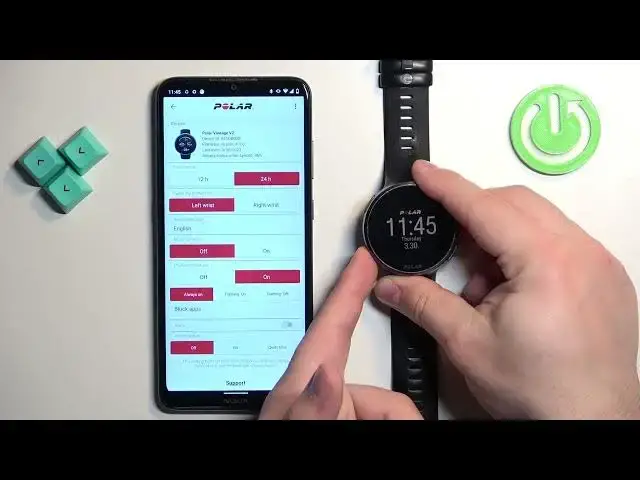
Welcome! In front of me I have Polar Vantage V2 and I'm going to show you how to enable the phone notifications for this watch on the Android phone
0:09
Basically if you want to receive the notifications from your phone on your watch
0:17
Before we start, if you want to receive the notifications from your phone on your watch, your watch needs to be paired with your phone via the Polar Flow application
0:27
Once the devices are paired together we can continue. And now we can open the Polar Flow application on the phone that is paired with our watch
0:36
After you open the application, tap on the more options or menu icon to open the menu
0:42
Then tap on devices and right here you should see your Polar Vantage V2
0:47
Find the option called phone notifications and you can tap on the on button to enable them
0:53
If you get the pop up about the permissions, tap on OK
0:57
Allow the required permissions. Tap on turn on. Find the Polar Flow app on the list
1:04
Tap on it and then tap on the switch next to allow notification access
1:09
Allow it. Do the same for the second Polar Flow. Like this
1:15
Once you're done with the notification access, go back to the app. You probably will need to allow more permissions
1:23
Once you're done with the permissions, you can also select one of the modes
1:30
We have always on, training on and training off. Once you're done, you will need to sync your watch with your phone to apply the settings
1:37
Hold the back button and keep holding it until you see it connecting to your phone
1:43
It's going to start syncing with your phone. Let's wait until it's done and settings apply
1:53
After the devices are done syncing, you should be able to receive the notifications on your watch
1:58
I'm going to send myself a message on the Discord. As you can see, we got the notification on our phone and on our watch
2:05
You can tell by this red dot at the bottom of the screen bouncing
2:09
You can open the notification panel by swiping up from the bottom of the screen
2:14
Like this. Here we have our notification. That's how you enable the phone notifications for this watch on the Android phone
2:24
Thank you for watching. If you found this video helpful, please consider subscribing to our channel
2:29
If you found this video helpful, please consider subscribing to our channel and leaving a like on the video