0:00
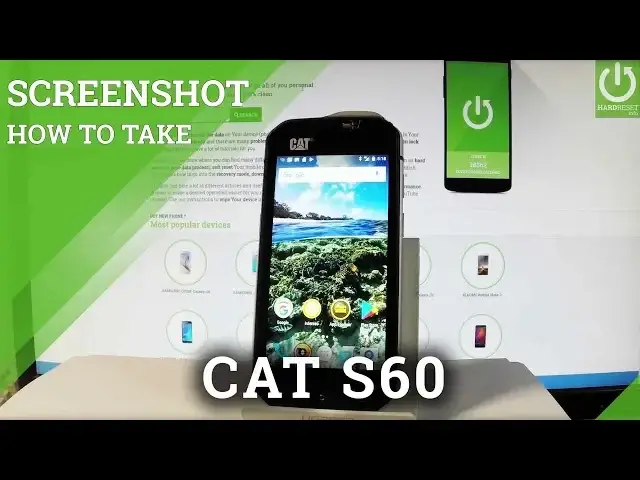
Here I have cut at 60 and let me show you how to take screenshots on the following device
0:08
At the very beginning let me start by using a home screen, then let's tap apps icon, let's
0:13
open the screen that you want to capture, in my case it could be a calendar, and let's
0:17
just simply assume that I want to save the following screen. So I have to hold down together power key and volume down, let's do it for about 2 seconds
0:26
and as you can see you just took a screenshot. Let me show you one more time, let's hold down together power key and volume down for
0:31
about 2 seconds, and you just captured another screenshot. Now if you would like to share, edit or delete taken screenshots you have to find the screenshot
0:40
folder, the quickest way to do it is by using upper bar and by tapping screenshot captured
0:45
You can also accomplish that by using a home screen, tapping apps icon, then let's select
0:50
the file right here, and here you've got a couple of files, for example the pictures
1:00
and you can choose screenshots. Now you can choose your screenshot, open with photosuit, or use a different app, and you
1:11
can now share, edit or delete taken screenshot. So everything went well, thank you for watching, please subscribe our channel and leave thumbs