0:00
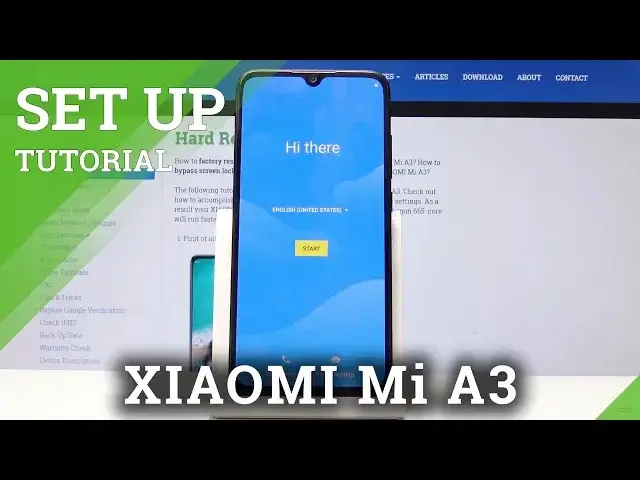
Welcome, it's Nami from Xiaomi Mi A3 and today I will show you how to go through the setup
0:10
process of the device. So once you put the device for the first time you will be presented with this screen and
0:16
you start off by choosing the language. So just tap here and then select the language
0:20
Now I'm gonna stick with English so I don't really need to do anything and then I press start and you get a screen about the SIM card
0:26
Now I don't have any SIM card inserted into the device so you can just skip it
0:31
It doesn't really matter in any way you can put a SIM card later on and it will literally
0:35
change nothing. So the next screen you will see is the Wi-Fi and here you can connect to certain or your
0:43
Wi-Fi that you have one, if you have one, let's say that
0:47
And then the device will start looking for updates and also then allow you to connect to your Google account if you have one
0:53
So I'm just gonna choose one and then connect. Give it a moment as it's looking for updates and stuff like that
1:13
I guess I won't be connecting to network in this case. So I just skip it in this case
1:19
I'm not sure what's wrong with my network. So you can basically skip it as well if you don't want it
1:26
And like I said if you would connect you have the ability to log into Google and there just
1:33
up enable like backup and stuff associated with the Google account. So I just tap on next, date will be accurate, so location, you have some additional options
1:44
that you can enable or disable here. For like localization if you don't want it to be enabled you can disable it but keep
1:50
in mind that you will have the option to enable or disable it later on as well
1:55
Let's tap on accept. And then you have the fingerprint unlock so you can set up a way of unlocking your device
2:04
to a fingerprint. Now mind you, once you're setting it up for the first time you'll also need to add some
2:10
kind of other way of unlocking the device like pin password or pattern
2:15
I'm just gonna do it right now as an example. So by default it's set to pin and you can also change it as you can see right here
2:23
Screen lock options and you can for instance set it to pattern and draw the pattern
2:30
Tap next and redraw it again and confirm it. And now we should be able to enroll our fingerprint which is located right here
2:38
Let me just get a better grip on this. I'm not trying to do it like super good fingerprint read I'm just trying to get it quick
2:55
Normally you want to move your finger around and get it from every angle possible but here
3:00
I'm just trying to get it to finish the process. And basically that's it you have some new services which can enable these experimental
3:10
programs and you don't really need that. You can just tap on finish and again you can enable it if you wish to
3:17
And basically the process is now finished. So that is how you would set up the device and if you found this video helpful don't
3:22
forget to hit like, subscribe and thanks for watching