0:00
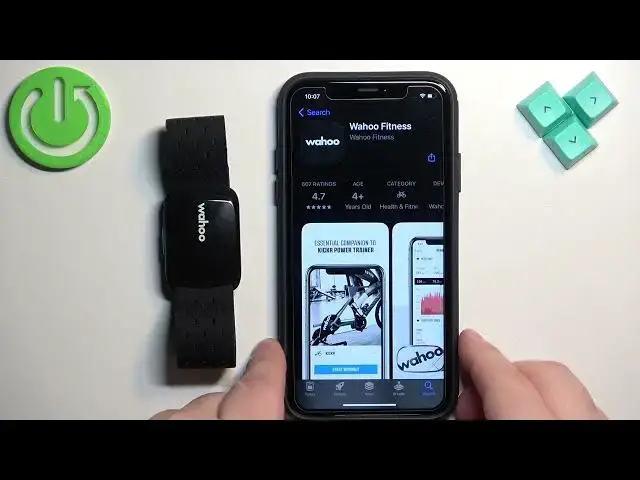
Welcome! In front of me I have Wahoo TickerFit sensor and I'm gonna show you how to pair this
0:06
sensor with the iPhone. First thing we need to do is to turn on the sensor and to turn it on
0:14
simply press and hold the side button right here for three seconds. Press and hold it and once you
0:20
see the blue light flashing you can release the button and the blue light flashing means that the
0:26
sensor is turned on and it's ready to be paired. Now we need to download the Wahoo Fitness
0:32
application on our iPhone so make sure you have the internet connection and Bluetooth enabled
0:37
Once you do open the App Store on your iPhone. In the App Store tap on the search icon and tap
0:44
on the search bar and type in Wahoo. Wahoo come on Fitness. Then tap on search and you should see this application on the list Wahoo Fitness
1:04
Tap on it. Tap on the get button to download and install it. Let me confirm by tapping on install and entering the password
1:14
Okay and let's wait until the application is done installing. And once the application is done installing you can tap on the open button to open the application
1:32
After the application opens you will need to log in into Wahoo account
1:36
If you don't have an account you can tap on the sign up button and create a new one
1:41
I already have an account so I'm gonna tap on login. Enter the email address and password
1:49
And then we can tap on login to log in. After you log in you probably will see this page. Basically
1:56
we can tap on the setup Wahoo products to go to the setup page. So tap on it
2:02
Now select the device. So we need to select the ticker. Allow the permission for bluetooth by tapping on ok
2:09
Tap on continue and the app should start looking for the nearby devices
2:17
And after a couple of seconds it should detect our sensor. And once it does tap on pair
2:24
Then tap on continue. Continue. Finish setup. Finish setup. And once you finish the setup you can also allow or deny the permission for the
2:37
location. I'm just gonna allow it. And next we have the option to allow the location to be allowed
2:48
for all the time or only using the app. I'm gonna keep it on only while using the app but you can
2:53
change it to allow all the time if you want to. Okay you can also tap on the settings icon right
2:58
here. Tap on sensors and you should see your ticker right here on the list. You can tap on it
3:03
to open the device page for it. And we have info right here. We have the battery. We have the
3:09
range. Maybe not range. Maybe signal of the sensor. Basically how strong it is
3:19
And then we can tap on sensor info and here we have more information. Okay and at this point
3:25
of course the devices are paired and that's how you pair this sensor with the iPhone. Thank you
3:31
for watching. If you found this video helpful please consider subscribing to our channel
3:35
and leaving the like on the video