Up next in 10


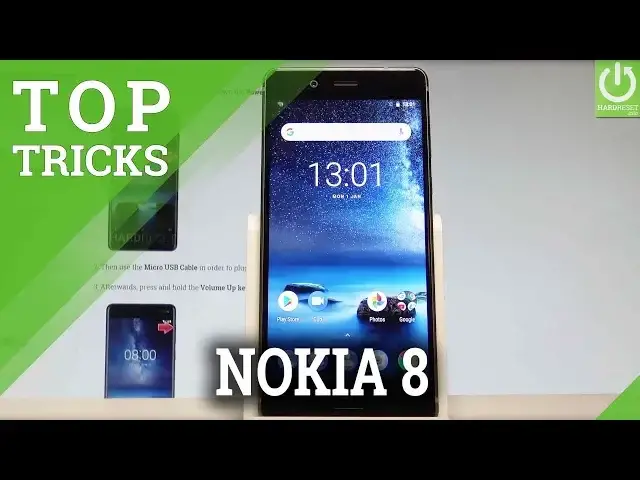
Check out the top 5 tricks for NOKIA 8. Let's know your phone better. Let's see what you can do on your NOKIA 8.
More Info:
http://www.hardreset.info/devices/nokia/nokia-8/hardreset/first-method/
Show More Show Less View Video Transcript
0:00
Here I have Nokia 8 and let me show you top tricks for the following device
0:09
Let me show you the 5 top, 5 coolest features for the Nokia 8
0:14
At the very beginning let me show you some simple and some very useful things which is
0:18
the compass. Let's enable the compass by using the camera icon in that home screen
0:26
Let's use this settings key in the left upper corner and here you've got some tools
0:34
Let's enable the compass right here. Now let's go back and as you can see you can use the compass on your camera app right here
0:43
And that's it. Here you've got the information about the heading and if you would like to disable the
0:49
compass let's use it in the same way. Let's use the same icons and now you can go back
0:55
Now let's go for the second trick. So let me show you how to reset the app preferences
1:01
Let's just assume that you would like to reset the customized settings regarding the apps
1:05
but you would like to keep your personal files, personal data. It's very easy
1:10
Let's just open the list of all settings. Here you have to scroll down to the system
1:16
Let's choose the reset options and here you've got the reset app preferences
1:20
So here you've got the information that this will reset all preferences for disabled apps
1:25
disabled apps notification, default application for actions, background data restrictions and any permission restrictions
1:32
And what's more important you will not lose any app data. Let me choose the reset app and it will also reset some settings with your applications
1:44
So that's it. Let's go back and now let me show you the third trick
1:49
So the magnifier. Let's just use the list of all settings. Choose accessibility right here and here let's choose magnification right here
2:06
Let me enable this one and as you can see in order to zoom you have to quickly tap screen
2:12
three times. So let me show you. Let's zoom in for example this information
2:19
Let's tap three times and here by using two fingers you can scroll down and choose whatever
2:28
you want to magnify. It's very useful feature. You can leave it enabled
2:33
If you tap the screen three times the screen will return to a normal size
2:38
Let me go back. Remember let's just tap three times and now you can use your device in a bigger way
2:48
So that's it. Now let's go for the next tip for the next trick
2:53
So in just a few steps you can change the display size and font size of your device
3:00
So all you have to do is open the settings one more time
3:06
Choose accessibility and here you can choose the font size. As you can see you can make it bigger or you can make it small right here
3:16
Let's go back. Let me also change the display size and also make it bigger or smaller
3:25
What's also very interesting you can change the color so you can make the color inversion
3:31
Let me do it. Let's just press on color inversion. As you can see everything turned into the inverse version
3:40
Let's just use it again to go back to the previous settings
3:45
All right. Now let me show you the last trick. The emergency information is very useful one
3:51
Let's choose settings here. Let's choose the user and the accounts. Let's choose emergency information and here you can choose some medical information so
4:01
you can edit the information to choose the address, the blood type, allergies and other
4:08
medical notes. Let's go back. You can also add some contacts right here and everything is needed for your safety
4:19
So adding medical information and emergency contacts can help you with the first responders
4:27
in an emergency situation. So it's really worth to set up this information
4:33
Let's go back and that's it. So thank you for watching. Please subscribe our channel and leave a thumbs up under the video
4:41
Stay safe. Stay healthy. Stay safe. Stay healthy. Stay safe. Stay healthy
4:47
Stay healthy.
#Mobile & Wireless Accessories
#Mobile Apps & Add-Ons
#Mobile Phones