0:00
Welcome! In Fronomy I have Xiaomi Redmi 8A and I'm gonna show you a few codes
0:09
you can use on this device. Let's start by opening the phone up by tapping this
0:14
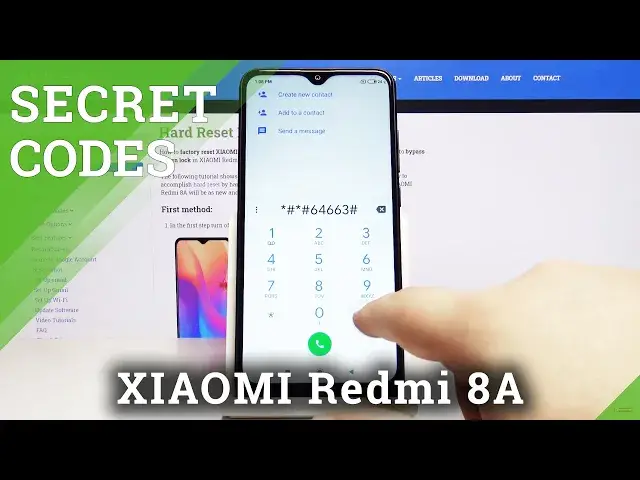
icon right here. Now let's tap on this icon to open the dial pad and now you
0:20
can enter the first code which is asterisk hash asterisk hash 64663
0:31
hash asterisk hash asterisk and this code opens the QC test menu. Here you
0:38
can test hardware on your phone. For example you can test a speaker and now
0:47
you can enter the numbers that the speaker is saying and then tap pass. Now
0:54
you can test the microphone like that and you can go back and you can test
1:02
many things right here. Speaker, receiver, LED test, touchpad, touch panel, headset
1:12
many many things. Okay let's close this menu go back to phone up and enter
1:18
another code which is asterisk hash asterisk hash 4636 hash asterisk hash
1:28
asterisk and this code opens the testing menu. Here we have options like phone
1:35
information 1, form information 2 and Wi-Fi information. Let's tap on phone
1:39
information 1 first. Here we have some information about our device. We can run
1:44
also the ping test and we can tap on more right here and we have options like
1:50
view sim address book, view fixed dialing numbers, view service dialing numbers, IMS
1:55
service status and enable data connection. Let's go back and tap on phone
2:01
information 2. This menu is almost the same as the previous one and right here
2:11
we have Wi-Fi information and we have options like Wi-Fi API, Wi-Fi config, Wi-Fi
2:15
status. Let's tap on Wi-Fi API. Here we have options like disable network
2:20
disconnect, enable network, get configured networks and get connection info. Let's go back, tap on Wi-Fi config and here you can check the configured networks
2:32
status or options but you can't because we're not connected to Wi-Fi right now
2:38
so nothing is visible. And Wi-Fi status right here you can check the status of
2:43
your Wi-Fi but like I said before we're not connected so there's nothing. Okay
2:48
let's close this and go back to phone app, enter another code which is
2:56
asterix hash asterix hash 225 hash asterix hash asterix and this code opens
3:06
the calendar info menu. If you're logged in into a Google account you can see
3:10
information about your calendar right here. Okay now let's enter another code
3:18
which is asterix hash asterix hash 426 hash asterix hash asterix and this code
3:28
opens the FCM diagnostic menu. Here you can tap on events to see the events and
3:33
on status to see the status. You can also tap on the more options icon and select
3:40
advanced view to see more information. Okay let's close this and enter the last
3:48
code which is asterix hash 06 hash and this code opens the device information
3:55
menu and here you can check the email numbers of your device and the serial
3:58
number as well. And that should be all. Thank you for watching. If you found this
4:05
video helpful please consider subscribing to our channel and leaving a like on the video