0:00
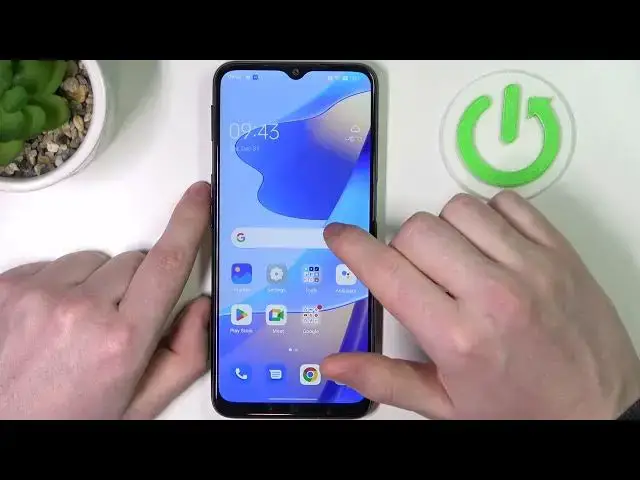
Hello in this video we're gonna check all available gestures and motions and how they work on Oppo a16s
0:11
And To check them out. We'll need to open our settings scroll all the way down to find the system settings
0:18
Answer the gestures and motions you will need to accept to some permissions
0:24
For these to work and here we have them So there's the gestures and first one screen of gestures click on it and
0:33
Here if you enable it that there'll be a bunch of options which you can use
0:38
So I'm gonna cover them all in a last bit of a video now
0:43
Let's move to rest of them. So swipe down with three fingers to take the screenshot
0:48
That's a very simple one enable it and if you swipe down your three fingers like this, you'll make a screenshot
0:54
You can touch and hold with three fingers to take the screenshot as well
0:59
Make sure to enable it first and now that screenshot is a bit different as you can crop the image
1:05
to whatever size you like Rise to wake if you enable it and lock your device and then pick it up your screen should wake up
1:16
Lift to ear to answer calls now if there's a call incoming and you lift your phone to your ear
1:22
It should answer the call Auto switch to receiver automatically switch to receiver when you lift your phone to your ear
1:30
flip to mute incoming calls and now if you Have your phone locked or unlocked it doesn't matter and you flip your phone
1:40
Like this it should mute all incoming calls Now as I promised let's go for a screen of gestures and the first one is double tap to wake up or turn off screen and
1:50
Here simply double tap to lock your device But it works on a lock screen only so yeah, let's lock it and
2:06
Double tap it wakes up double tap it locks again very simple
2:14
Next one is a draw all to open a camera if we enable it we can draw all and
2:21
The camera should open There's a time oh, sorry, there's a draw V to turn on the flashlight
2:43
So you draw it like this and the flashlight should start make sure to enable the setting first I
2:51
Think that only works on a lock screen. So we let's lock it and check it out
2:58
It works fine You can do the same motion to disable though. Yeah
3:06
Next one is a music control and here you can draw different shapes to control music on your lock screen
3:13
So here you can see all of the gestures that you can make
3:18
So there's a post to post the music. There's a play or previous to go for a previous track and
3:26
That's basically all of them Now in the more you can see a lot of the different
3:32
Shortcuts, so for example, draw arrow up to and Here click on it to give it a different function. You can unlock your phone make a call or open a specific app and
3:44
make sure to enable them first and it works the same way for any of this gestures shown right here and
3:50
That's it for this video. Hope you like it. Please consider subscribing to our channel leave like and a comment below