0:00
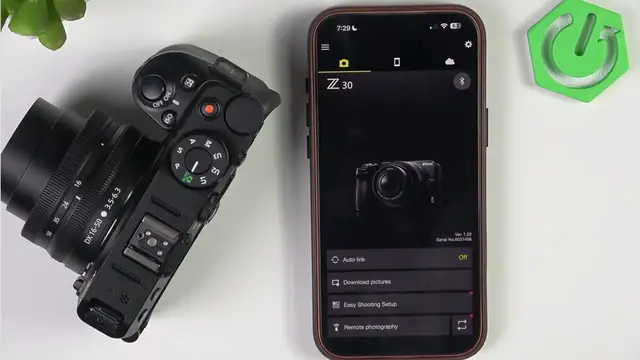
Hello. In today's video, I'll show you
0:02
how to fix your Nickon Z30 not
0:04
connecting to Snapbridgeidge.
0:11
I've had multiple problems with
0:13
Snapbridge and I'll try to show you
0:15
different solutions that have help uh
0:18
have helped me. The first ones are uh
0:21
quite obvious is making sure that both
0:23
uh that the um Bluetooth is enabled on
0:27
your um on your camera. So go to the
0:33
then um yeah. So I'm in the menu now.
0:36
Let's go to the setup menu on the left
0:39
panel. Then go down until you find
0:42
connect to smart device
0:45
and then make sure that Bluetooth is on.
0:48
You can see it is on now. It's I can
0:51
disable it. I'll leave it enabled. Um
0:54
I'll go back now. And uh that's the
1:00
if it didn't help, um try restarting the
1:06
So turn it off. You may want to remove
1:09
the battery as well to make sure it's
1:10
fully off um for a moment. So open the
1:14
door here. Push this yellow lock. Remove
1:17
the battery. Wait for 15 seconds. After
1:20
15 seconds, put it back in. Close the
1:22
door. Turn the camera on. If it didn't
1:25
help, then you may want to forget your
1:27
phone and forget your camera. So, first
1:30
of all, let's forget the phone on the
1:32
camera. Go to menu. Then go to connect
1:35
to smart device, pairing Bluetooth, pair
1:38
devices. Select your device and click on
1:41
delete. Then click on okay.
1:43
Now, um let's go back. Make sure Wi-Fi
1:47
connection is also off
1:50
basically. Um and then uh also forget
1:54
your uh camera on the phone to do it. Uh
1:57
if it has been connected to the app
2:00
before, click on the settings uh gear
2:02
icon here. Click on forget camera.
2:05
Remove it. Um yes. And now it'll take me
2:09
to the settings of my phone. And then I
2:11
will need to go to Bluetooth. On iPhone
2:14
is just in the main page. On other
2:16
phones, it may be in connections, then
2:18
Bluetooth in the settings of the phone
2:23
find your camera. Click on the I button.
2:26
Forget this device. Forget device. Let's
2:29
go back. Now, now it's been forgotten.
2:32
What I also recommend since we're
2:34
already doing a lot of things is
2:37
uninstalling the app and reinstalling it
2:39
later. So, let's uh delete the app.
2:43
Uh, and then I'll install it in a
2:46
moment. Uh, and try connecting. In a
2:48
moment, I'll show you how to connect
2:49
properly. And if that doesn't help, uh,
2:53
just like so, you know, if that won't
2:56
help, then the only option that you have
3:01
um, go to the menu on your device on
3:05
your camera. But remember that like
3:07
erasing your settings will erase all the
3:09
settings of your phone. Uh but you sorry
3:12
not your phone of your camera. So go to
3:15
the setup menu go to almost the very
3:17
bottom and re you may want to reset all
3:19
settings but remember it will bring your
3:22
device back to the factory state. Now
3:25
I'll download the app and I'll show you
3:27
how to properly connect.
3:30
So the app is now downloaded. Let's open
3:33
it. Now it'll ask me for Bluetooth
3:35
devices. I'll click on allow. Then it'll
3:37
ask me for um the access to my photos on
3:41
the phone. So I also have allowed it.
3:44
Then go to your select your country from
3:46
the list and click on okay. Now read the
3:50
license agreement. Exit it. Click on
3:52
accept the application uh license
3:55
agreement. Uh click on connect to
3:57
camera. And now select Z30 from the
4:00
list. Then I recommend using pairing
4:02
Bluetooth because it's an easier option
4:08
Go to the menu on your camera.
4:13
and then uh go to connect to smart
4:18
Pairing Bluetooth. Start pairing.
4:21
And now you can see the name will
4:27
Now find this name on the list that
4:29
appears. And now click on understood.
4:32
and it'll show you a list of available
4:34
devices for connection and make sure to
4:37
select the Z30 from that list. It may
4:40
take a little moment. Uh so let's wait
4:44
until the list appears. Okay. Now let's
4:49
Now it asks for pairing. So if the same
4:52
code is being displayed on both devices,
4:53
click on okay on both. Um and wait. Now
4:57
it says pairing complete
5:00
in a moment. Uh now it's showing waiting
5:02
for a connection. Give it a little
5:04
longer moment. Uh okay, now the
5:07
connection is established. Click on okay
5:15
yeah, let's close that. I'll allow
5:19
Uh I'll click on now here. And now if I
5:22
want to for example download pictures
5:24
from my camera then I can click on
5:27
download pictures and it'll need to
5:29
enable the camera's Wi-Fi. Uh so let's
5:33
click on okay. Now click on join and
5:36
it'll automatically connect and um
5:41
if that automatic connection doesn't
5:43
work uh then it is very likely to to
5:49
uh you haven't done something in the
5:51
video uh that was shown in the video or
5:53
you should reset your camera
5:57
um or just uh forget about connecting
6:00
like if you don't want to reset your
6:02
camera then yeah uh But uh well it did
6:06
fail but it didn't help fail because it
6:12
it didn't fail because
6:15
it just fails. It's it failed because
6:19
screen went off. So um
6:23
you know what in that uh situation I'll
6:26
go to menu. I'll go to connect to smart
6:29
device. I'll uh turn off Wi-Fi. I'll
6:32
close the Wi-Fi connection. Now it
6:34
appears here again. Let's click on
6:36
download pictures. Let's click on okay
6:38
to enable the camera Wi-Fi.
6:41
Now it's going to do it automatically.
6:44
Uh let's join the network.
6:47
It'll take a moment. You can see I'm
6:48
connected to my uh Wi-Fi. Now it
6:52
disconnects and it connects to the
6:54
camera. Uh this will light up uh yellow.
6:57
And yeah, now it works. So, uh once it
7:01
lights up as yellow, then it works. And
7:04
now I have all the pics uh here. I can
7:09
select them. I can download them. I can
7:10
do whatever I want in the app. I can
7:12
also even use the remote photography.
7:16
But I would need to use a different
7:18
mode. Let's do P. Let's click on okay.
7:20
Let's enable a remote photography. But
7:23
it turn it again. It shut off the Wi-Fi.
7:25
So, let's give it a moment. Uh, but
7:27
yeah, that is basically it for this
7:29
video. I hope that this video was
7:31
helpful. Don't forget to like and
7:32
subscribe, and I'll see you in the next