0:09
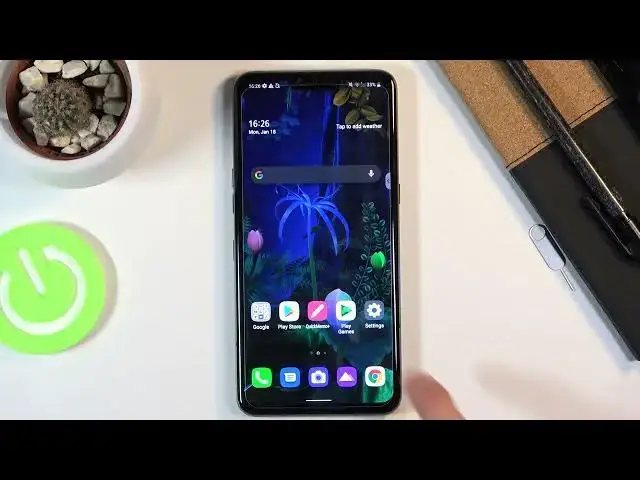
In front of me is an LGV-50 and today I'll show you a couple tweaks and tricks that I can
0:13
do on this device. So starting off we're going to begin by changing the outdated gesture or buttons at the
0:19
bottom for gestures. And to do it, all you need to do is go into the settings, then find display, and in here you
0:27
you should see navigation bar and simply switch it to gestures and so create this tiny little
0:34
bar as you can see right here which you swipe up on to go home like so you swipe up and hold to go
0:41
to recent and then you swipe from sides to simply go back now i think i just activated a one-handed
0:47
mode yeah that was one-handed mode apparently so yeah okay so moving on to the next one-hand
0:56
one it's going to be the night mode now normally if you're thinking that this night
1:01
mode is going to be that yellow kind of kind of not very good looking yellow color
1:07
thingy thing then that is not it it's actually just a dark mode on this device
1:13
but it's called night mode for some reason and again it can it can be found in the
1:17
display section so from here it's good to night mode and once you enable it you can
1:24
see that it turns on the dark mode and apart from it looking dark I also
1:31
have the option to make it turn on automatically so that will basically turn on during the day and night and keep switching throughout the cycles And also when it in the dark mode as it is right now
1:44
the battery will also get a little bit of a boost, not by much, so keep that in mind. But still
1:50
it is worth mentioning that you will probably get about an hour maybe. And that is because
1:55
this device does have an OLED display. That being said, OLED displays pixels on a
2:01
are self-lit so each pixel that that is on will emit their own light so if it is
2:10
fully black as for instance all here those pixels are basically turned off at the
2:15
moment and because they are off they don't need to waste energy now moving on to the
2:21
next option it's going to be the video enhancer so this is for people that like to watch
2:26
videos on their phone so again it's going to be under the display section so let's go
2:30
onto the display and from here we should find it somewhere, there we go, video enhancer
2:36
From here you can enable it. Now unfortunately there is no way for me to show it
2:41
So you'll basically have to toggle it on and off and see the difference between it
2:45
And certain other phones you do have option for video enhancement and it does give you the
2:50
option to see the difference that will create between videos but here we just kind of toggle
2:55
it on and off without any kind of difference here or any kind of showcase
3:00
Now moving on to the next option, it's going to be the animation speed
3:05
And even though this is basically a flagship device it does feel a little bit sluggish LG skin for the Android isn in my opinion the greatest and if you believe well if you have the same opinion here then
3:21
probably what you want to do also is increase the animation speed of all the
3:25
applications so they are way faster than they are right now making the phone feel a
3:30
little bit snappier and basically approaching that actual like flagship feel. So let's go into these settings. Scroll all the way to
3:38
down to system choose about phone software info I believe nope let's go back you
3:50
quickly find it looking for build number it was actually in software info so
3:55
once you find a build number top on that seven times and it will give you a
4:00
message that you are now a developer from there you want to go back and in the
4:07
system page you will see now there is a developer options tab and when you
4:12
tap on it just tap on okay so when you tap on it you want to scroll down past
4:18
halfway and you should see these three options right here window animation
4:24
scale transition animation scale and animation duration scale now each one of
4:28
them will correspond to a different kind of animation but I'm not going to really
4:32
go into it I just advise you to change it all to 0.5 so when you top on it as you can see
4:37
have a bunch of options. Anything more than one will be slower animation speed so it
4:42
will feel even worse than it already does and anything below one so 0 or off will be faster or completely off in this case So 0 is in my opinion a good medium
4:56
And now it does increase in speed a little bit. So that's basically it
5:07
Now moving on to the last option, it's going to be the floating bar
5:12
And you can enable it through XT. I believe it's called, let's see, open the middle, there we go, extensions, and we have floating bars, so just toggle it on
5:22
you can also top on it, and add a bunch of shortcuts to it
5:25
And this is the little thing that I can see right here, that is basically visible throughout the entire page
5:36
Now, let me go, there we go. So when you top on it, it has a couple different things, so you have shortcuts for like
5:42
basically screenshots, scroll screenshots, music player, although I don't have any music playing right now, so it's kind of barren
5:50
and then just quick access to a couple different things. And it is basically visible everywhere you are, so if you open up and up, you can quickly access
5:59
a couple different things from here, just add a really quick top
6:05
So, that being said, this will conclude all the tweaks and tricks I wanted to share
6:10
and if you found this very helpful, don't forget to hit like, subscribe, and thanks for watching