Up next in 10


How to use secret codes in LENOVO Tab 4 LTE? How to open hidden mode in LENOVO Tab 4 LTE? How to read phone's inforamtions in LENOVO K6 Note? How to open advanced options in LENOVO Tab 4 LTE? How to open secret mode in LENOVO Tab 4 LTE?
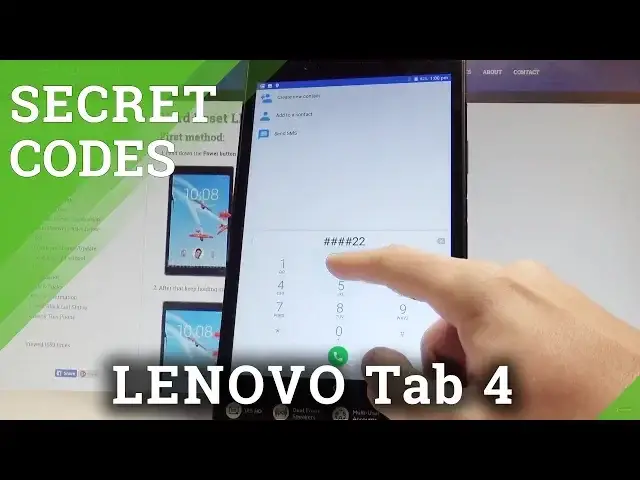
Use secret codes in LENOVO Tab 4 LTE. You can read a lot intresting information such as Version Info, Serial Number, Internal Version and Other Info. You may also use Test Mode and MTP Loger. By usinfg the LENOVO secret code you can also accomplish the hard reset operation.
More Info:
https://www.hardreset.info/devices/lenovo/lenovo-k6-note/hardreset/first-method/
Show More Show Less View Video Transcript
0:00
Here I have Lenovo Tap 4LT and let me show you how to use secret codes on the following device
0:11
So at the very beginning let's start by using the home screen tab apps icon, find and select the phone
0:18
And now you can use the phones dialer. So let's start by using the following code
0:23
Hush, hush, hush, 0,000, hush. As you can see here you can read the phone
0:29
the external version of your device. Tab okay to confirm it. Now let's open the hidden mode by using this secret code, hush, hush, hush, hush, 1,1, hush
0:43
As you can see the assemble mode pops up. Here you can perform some auto test so you can test all hardware features or you can choose hand test
0:52
and here for example test the top speaker. If you hear everything, let's choose okay
1:07
Alright. Here you can also test, for example, the receiver. The receiver is playing something
1:17
If you choose the numbers correctly, the test will have the correct result
1:24
You can also test other things such as Bluetooth, SD card, ports, the..
1:29
the black light the front camera the back camera Wi touch panel and a lot of more TabXit if you would like to You can also see the version number right here
1:40
Here we've got all version of your device. You can see the test report if you would like to
1:47
You can choose factory restore switch language. You can switch language to the following one
1:54
You may also see limited battery charge. Let me tap okay, see the factory flux and use the call test right here
2:07
Alright, that's it. If you would like to quit this mode, let's use the back arrow and now let me show you how to enter the serial number information
2:16
So let's use the hash hash, hash, two, two, hush. As you can see the serial number just pops up
2:26
In order to quit this, let's tap, okay? Now let me show you how to open the other testing menu
2:32
In other secret mode let's use the hash hash, hash, free free, hash
2:39
And this is like the card log so you can see the method 1, 2 or 3
2:47
You can use this mode right here or you can choose exit to quit this menu
2:52
Now it's time to enter the factory reset mode but let's just be careful
2:58
that one because it may erase all your personal data Let me just show you how it works Let use the HASH As you can see if you tab okay the device will perform the hard operation
3:15
so the tablet will erase all personal data from your device. In my case, let me choose cancel
3:21
So, now let me show you how to open the Android testing menu
3:25
Let's use this code. Asterix-h-h-h-h-6-36-36. Hach asterix, as you can see the testing manager pops up
3:36
Here you can see the tablet information. So you can read the email number, current network, signal strength, voice network type, data network type
3:44
You can run a pink test or choose more key in order to select radio band, view SIM address book
3:50
view fixed dialing numbers, view service dialing numbers, get PDP list or enable data connection
3:57
Let's go back. You can also use the usage statistics in order to do that
4:02
see the list of all applications and use the last time use and usage time
4:07
Let's go back, let's choose the Wi-Fi information. Here you can use the Wi-Fi API
4:11
When you can disable network, disconnect network, enable network, get configured networks or get connection info
4:17
Here you can also choose the plan status. When you can read the statistics, you can refresh them or run a ping test
4:24
You can also see the information about your configured networks if you have some right here
4:30
Let's go back by using the database. using the back arrow a couple of times this time let me show you how to open the
4:36
calendar information so let use the asterix hash asterix hash 225 hash hash asterix And the calendar info just pops up Here you can choose contacts and read the events from the following lists
4:54
Let's go back and this time let me show you how to open the Google Play Services mode
5:00
Let's input asterix hash, asterix hash, 426, hash. hash asterix hash asterix all right and as you may notice Google Play services pops up
5:14
here you can choose pink connect disconnect events or status use back key to open the
5:21
phone dialer and in order to have access to the debug UI let's use this code asterix
5:28
hash asterix hash 759 hash asterisk hash and debug UI just pops up here you can view clients ideas you may change oem mode you can read the
5:42
next alarm current back off and other stuff use bug key and now let me input the email
5:49
mode in the email code so let's use the asterix hash 06h this is the email mode when you
5:56
can read your email information tab okay and that's it use the back key and now you can use
6:01
your device in a normal way thank you for watching please subscribe our channel leave thumbs up
6:07
video