0:00
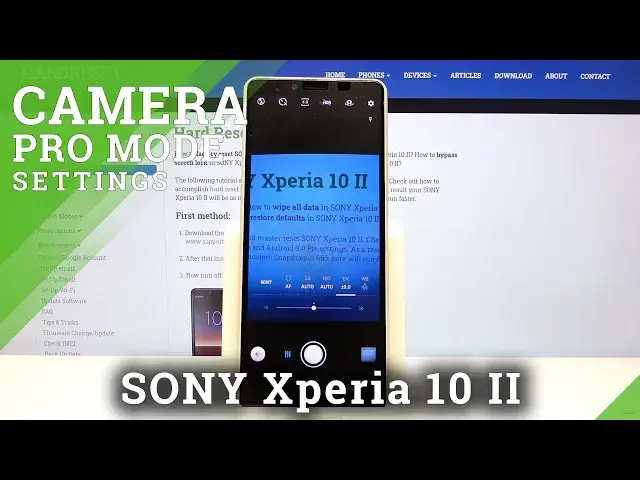
Welcome! Here I've got Sony Xperia 10 II and I'm gonna show you how to use the
0:09
camera pro mode at this device. So at first we have to tap on a camera button
0:13
here to open it and as you can see for now we are in the standard photo mode so
0:18
let's change it. We can do it by using this button here in the left corner at
0:21
the bottom with mode. When we tap on this we get access to all of the modes of
0:25
this camera and one of this is the manual one so this is the pro mode. When
0:30
we tap on this we can start taking photos on it and the pro mode gives us
0:36
possibilities to choose shooting parameters by ourselves. This is useful when we want to learn photographic skills and making experiments with
0:44
photography. So let me start with this settings bar and the first one button I
0:49
want to show you from the right is the white balance. So when we tap on this we
0:52
can change the temperature of our picture and we can adjust it. We can pick
0:57
the cloudy light, then the daylight, white fluorescent light and the tungsten light
1:03
So this is how it works here and this is how it changes. We can also go back to
1:08
the auto settings here but for now let me stay on the tungsten light and let's
1:13
move to the next one button here. This is the exposure compensation so here we can
1:18
control the light of our picture and by using this slider by going to the right
1:23
we can make it more bright and by going to the left we can make it more dark. As
1:28
you can see this is how it works here and let's move to the next one button
1:32
Here is the ISO so here we can control the camera sensitivity to light so this
1:38
is also light managing but a little bit different and we can use this slider to
1:44
manage this. We can pick from 50 ISO so less sensitivity to 3 and to thousands of
1:50
it so more sensitivity. It's really cool and this is really wide spectrum here
1:54
And let's move to the next one button. This is the shooter speed so here we can
1:59
change the time of taking picture. As you can see by using this slider we can do
2:03
it. We can pick from one second of taking picture which is very long and this is
2:09
as you can see here we have icon with human standing so this is for stable
2:13
objects and we're going to the right we can change it to the 1 and 4 thousands
2:19
of seconds so this is really short and this is good to taking photos to objects
2:24
in move as you can see here we have icon with human that is running so this is
2:29
really pro and really cool here. And now let's go to the next one button. This is
2:34
the focus as you can see here we have AF so autofocus and by using this slider we
2:40
can change it to the manual focus so now it's MF. As you can see this is how it
2:45
works. And after turn it on all of these settings sometimes we may want to go
2:52
back to the auto settings. We can do it separately as you can see here we have
2:57
auto so when I tap on this we go back to the autofocus. The same thing happens
3:03
where in shooter speed for example when I tap on auto we go back separately in
3:08
shooter speed to auto settings. We can also do it at the same time with this
3:14
button from the left so reset and all of this came back to the auto settings so
3:19
this is how it works here for now let me take a photo
3:24
and here at the right corner in the bottom is the preview so this is the
3:41
quick access to the gallery that's all this is the picture thanks for watching
3:45
subscribe to our channel and leave a thumbs up