0:00
Welcome and for my mains today is the ZTE Axon 10 Pro and today I will show you how
0:08
to transfer files from your device to an SD card and vice versa
0:13
So to get started let's open up the files app. So in here it's called File Manager and when you tap on it on the bottom you should see
0:20
the two storages so you have the phone and the SD card. Now I already I believe I took a couple of photos as an example so I have something to
0:27
transfer and I think they're gonna be on the... There's a bunch of them here
0:34
That should work good enough. So key thing to keep in mind photos videos that were captured with the phone itself will
0:42
be always located in the DCIM folder while pictures somewhere below... There we go pictures right here will contain screenshots and I believe this is empty at
0:56
the moment but you can find screenshots there and then you have also download folder which
1:02
will contain anything that you have downloaded to a web browser or email stuff like that
1:07
so that could be pictures as well that could be screenshots and they're depending like
1:11
where you downloaded them it's gonna be in here and then other folders like movies music
1:18
have files there that you have placed there yourself so you probably know where they are
1:24
Now for me like I said I'm gonna use the photos here that are like several captured ones as
1:30
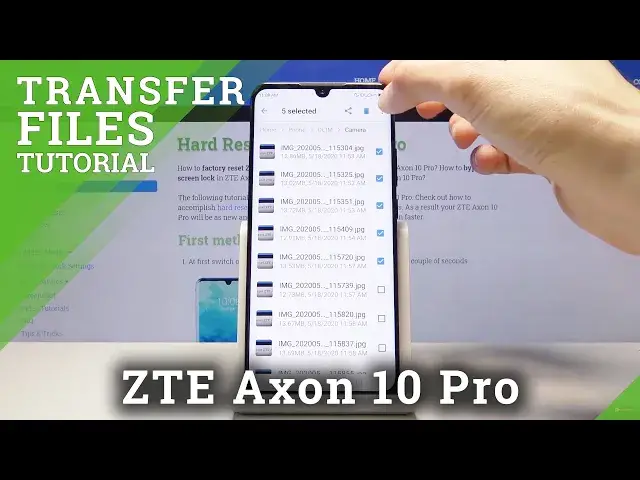
an example so to get started you want to select the files that you wish to transfer by simply
1:35
holding it and then it gives you that check mark and then you can simply add additional ones like so
1:40
You can also select them all easily by tapping on the three dots and selecting all here and
1:46
this will select every file in the folder right here and then you can deselect for instance
1:52
the ones that you don't want like so or you can also go back and as you have the camera
1:58
folder with all the 20 photos in there you can just select the entire folder along with
2:04
all of its content. Now whichever way you do it, whichever way you select it, it doesn't really matter
2:11
Whichever one works for you that's basically what's more important. So once you have selected your desired files, folders, whatever it is, tap on the three
2:20
dots and here you have two options so you have the move and copy
2:25
So choose the one that you want. Copy will just make additional set of the same files and just add them to a new location
2:33
while move will remove them from where they are right now. So I'm gonna select move and from there I wanna go back to the storage devices by tapping
2:42
on the blue text in here and then going to SD card because the original files are right
2:48
now located on the phone. And I could simply go into the DCIM right here and drop it or replace this folder that
2:55
exists here or I can just drop it wherever I am. So right now this is the main SD card location so I'm gonna paste it right in here
3:04
And that's almost done. Okay, there we go
3:20
So we're still in the SD card so there should be a camera folder. There it is
3:24
And those are all the 20 files that were in there. And if I go back to the phone itself where the files originated from you can see that
3:33
there is no more camera folder in here because I moved it
3:37
And that is how you would move, copy, transfer any kind of file from one place to another
3:42
And if you found this very helpful don't forget to hit like, subscribe and thanks for watching
3:48
I'll see you next time