0:01
Ifanami is a Black Shark 5 Pro and today I will show you how we can go through the setup
0:06
of this device. So to get started, you will obviously want to press on the arrow and then find your desired
0:15
language from the list. So I'm going to be selecting English. And from here you can choose your region
0:24
For a minute already selected a correct one so I don't need to change anything. obviously just as before find it from the list if it hasn't chosen a correct one for you
0:35
Now next page we can choose our keyboard though I have a little bit of a grape here
0:43
Gboard is a keyboard. Google voice typing is not so I'm not sure why it's showing up here so
0:49
if you want to actually choose a keyboard which you can type on it's already selected
0:57
Then we have terms and conditions. Obviously no phone can go without those
1:01
So if you're interested in knowing what kind of terms and conditions you will be agreeing to
1:06
we can tap on both of these and read exactly what they are
1:11
But at the end of the day, you do need to select this to progress further
1:15
Then we have terms and conditions again apparently for MiUI user agreement and Miwai privacy policy
1:23
I'm not exactly sure what the difference between Joy obec and me UI are but I guess we need to agree to both of them Now this will then start looking for your SIM card If no SIM card is inserted you can progress further
1:46
you can insert your SIM card no matter what step throughout the setup process
1:51
and even afterwards and it really won't change much. The only reason why it shows up here is so you can have mobile network from your SIM card
2:01
or you could connect to Wi-Fi. and the reason those two might be semi-important to you
2:06
is strictly for the Google account login page. Now this will show up throughout the setup process
2:11
if you select to connect to some kind of network, either through SIM card or Wi-Fi
2:16
If you choose to skip both of them, then you won't see the Google login page
2:21
throughout the setup process. It can be changed later on anyway, but we're just talking strictly about the setup right here
2:28
And additionally, Dayton's time will not be set automatically, which I'll skip both of them so you'll kind of get a demonstration of that
2:37
Now, next thing we have is a couple different Google services. So we have location, scanning, and sending user and diagnostic data
2:46
Now, you can tap on the drop-down and read exactly where they are
2:50
If you don't like them, turn them off, and then you can go to the next page
2:55
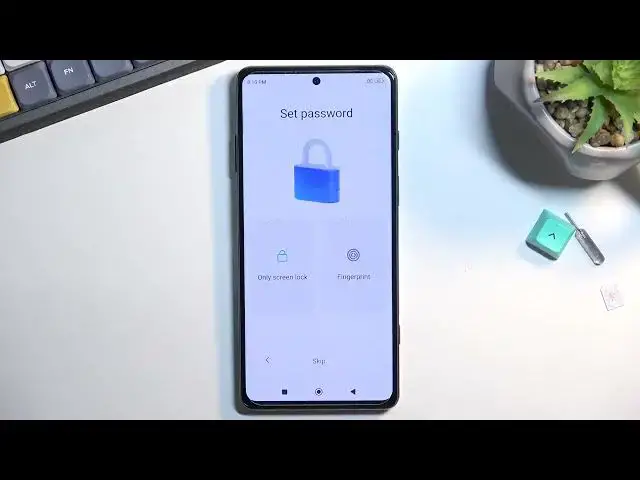
which will allow you to set up a screen lock. so we have two different versions of it
3:01
we have the screen lock which will include pen pattern or password and we have fingerprint self-explanatory
3:07
now if you're planning to use a fingerprint you are also required to set up a screen lock
3:12
the reason for that is if something would happen to your finger if you by mistake cut it you would just full lose access to your device So thus you would have still a pin pattern or password as an unlocking method instead
3:29
But I'll be skipping it anyway. Now on the next page we have additional settings like, again, location
3:36
These are more associated with the MiUI. Then we have the send user and diagnostic data again
3:43
personalized aids and wallpaper carousel. Now, some of them are self-explanatory, and we already went over these two. Um, the thing that I'll point out is the two bottom ones
3:54
So personalized aids or ads as it's misspelled, um, is just a malware that basically
4:03
constantly gathers data on what you search for, what you talk about, and generally your
4:09
interests and then gives you ads based on that. And if that already isn't, like, scummy enough
4:18
because it invades privacy quite hard, the way to turn it off is even more scummy
4:26
So just to put that out there, you can turn off both of these. As you can see, no problem
4:31
but hey, you try to turn off odds. They're trying to sell you up on it
4:36
Like, it's such a fantastic effing feature, but it's not. It really doesn't benefit you, I don't think, in any kind of way
4:43
And they also then decide to do the reverse psychology because when you try to do some action usually on Android
4:50
if you need to confirm it it always on the right side But not here Here you just keep it on or actually not even keep it on You turned it off and then it turns back on So so let turn off which is on the opposite side that it should have been
5:08
And there we go. You can get rid of this trash. Another thing that you can find here is the wallpaper carousel
5:14
and this kind of does show up with kind of a pop-up as well
5:19
This is not intrusive, and honestly, it's up to preference. What it does is just give you a slideshow of different pre-selected images
5:29
on your black screen and only on your lock screen or when the device isn't necessarily on like
5:34
the home screen where you have apps, but just where you kind of see like notifications. And it cycles
5:39
through them every time you wake up the display. So it has like a catalog of them and it just
5:44
kind of randomly picks one whenever you wake up the device. If you want this, then select try
5:50
If you don't, you can select no thanks and then go to the next page. And this does finish up the setup
5:57
So let's select done and that's it. And I'll mention even though I didn't really see the option to fix up time
6:03
it isn't correct because it is 6.40 in the morning and not 8.13
6:10
So if you needed to fix that one up, you can just go into the settings and change that there
6:15
or just connect to some kind of network and it will automatically fix it up for you
6:19
So anyway, with that being said, if you found is very helpful, don't forget to head like
6:24
subscribe and thanks for watching