0:00
Welcome! In front of me is an Osco Tiger 12 and today I will show you how you can enable
0:05
and also set up your Do Not Disturb mode. So to get started, swipe down on your home screen
0:13
which will reveal your toggles, and swipe down once again to extend them, the amount of visible
0:19
toggles at the same time, and from there find your Do Not Disturb mode. For me, it is right over here
0:26
but if you don't see it on the same page, you might need to swipe to the left
0:30
which will show you an additional page with more toggles. In case once you see it, if you're doing this the first time, I do recommend holding it
0:40
This will quickly take you to the settings where you can customize how the mode will function once you enable it. So going quickly into some of the options located in here
0:47
we have things like people, and in here you can select, you can call you or message you
0:51
with calls, having an additional option allowing people to bypass your selection
0:56
assuming they called you twice within a 15-minute period. At this point, the call will go through
1:03
though the mode is off. It might be a good option to have enabled in case of emergencies
1:11
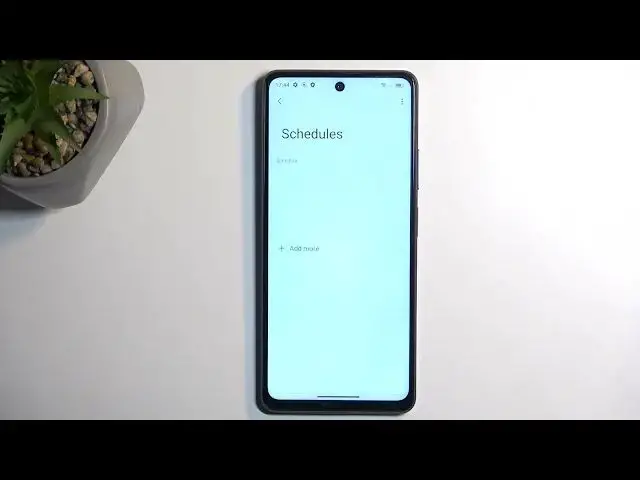
Going back, we have things like schedule. Here you can select a fully automatic schedule
1:15
There is always one pre-made called sleeping, starts at 10 p.m. and ends at 7 a.m. and runs
1:20
all week long, though it is obviously turned off by default. So if you want to use a schedule
1:26
you just need to toggle it on like so. Obviously, you can also create your own schedules here
1:31
and you can edit the existing ones by tapping on the actual text, and this will give you all the settings available here
1:38
And the last thing that I'm going to touch upon is the duration for quick settings
1:43
which is here. And what this will do, it's going to define what happens when you press
1:48
on the toggle itself, manually, obviously. By default, it is set to until you turn off
1:54
meaning that when you enable it yourself, you will need to remember to turn it off yourself
1:59
once you're done with it. Otherwise, it would be running indefinitely in the background
2:03
Otherwise, it would be running indefinitely in the background. I personally like to select it
2:08
to the middle option, which is for X amount of hours, and make it something a little bit longer
2:14
So once you enable it, because you, for instance, go into a business meeting
2:18
and you forget about it once you're done, the device will automatically turn it off
2:22
after the set amount of hours. I recommend selecting this to cover whatever kind of
2:28
circumstances you might need it for, plus a little bit extra just in case
2:33
Obviously, with this kind of option, when I confirm it, if I enable it, and then I forget
2:38
about it, the device will turn off the mode for me, and it shows you at what time. But obviously
2:45
I can also turn it off myself before that time, so no problem there. It is just giving you kind
2:51
of a safety net if you forget about it, so it doesn't run all the time in the background
2:58
So there we go. Those are all the options. And as you've seen, once it's all set up, you can quickly turn it on by finding the toggle, tapping on it, and there we go. It's
3:06
now enabled. It also gives you this icon right here, so you are aware. And once you're finished
3:12
with it, just find it again. There we go. And simply tap on it once more. So if you
3:20
found this very helpful, don't forget to hit like, subscribe, and thanks for watching