0:00
Welcome! Today I'll show you how you can enable and set up your Do Not Disturb mode on Android 13
0:09
Now for this specific video I'm going to be using Google Pixel 6 Pro, but the process should be
0:16
relatively same for majority other brands. So to get started pull down your notifications
0:24
and somewhere in here you'll find the Do Not Disturb toggle. Now for me it's visible right
0:28
off the bat right here, but if you can't see it in your end you can extend the list and hopefully
0:34
you can find it on one of the pages that you have. Like I said for me it's visible right at the start
0:39
right here. So anyway once you locate the actual toggle hold it and this will take you to the
0:44
settings where you can customize it. So from here you can choose who can call you, message you
0:53
other people, what kind of apps can give you notifications in this mode, other interruptions
1:01
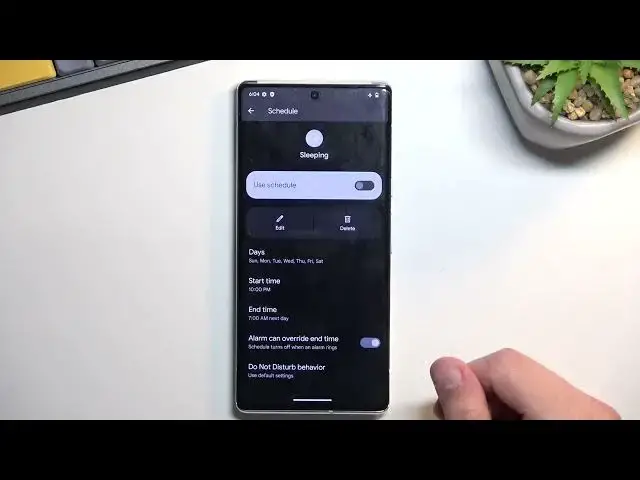
and alarms, and then we have also schedule. Now I'll mention that whatever you set right here
1:06
whoever you choose this will be, whatever you select will be the selection that can bypass
1:14
the Do Not Disturb mode when it's enabled. So if you for instance select contacts who can call you
1:19
and you select friends, friends only will be able to bypass the Do Not Disturb mode
1:24
Everybody else will be stopped by it. Anyway we have the schedule mode. If you click on schedule
1:33
you will have the toggles right here and if you want to customize it just simply press on the text and you can change it right here
1:39
As you can see. And we also have the duration for quick settings. This will define
1:50
what happens when you press on the toggle in your notifications right here. So right now it's until you turn off. This is the default for every phone and when you click on it
1:59
you also have for a specific amount of time which you can change or ask every time which will bring
2:04
up this kind of window every time. And display options for hidden notifications so you can just
2:12
select what kind of notifications will appear during this mode. Anyway once you went to the
2:17
settings right here you can close it and you don't have to actually come back to the settings
2:20
ever again if you don't want to change anything. And when you want to use your Do Not Disturb mode
2:26
find the toggle, tap on it. Now usually it will turn on automatically assuming you're using the
2:32
until turn off option but because I changed it to ask me every time it will bring up this window
2:37
right now every time. So from there I'll still stick with the until turn off. There we go. And once
2:43
it's enabled it will run until you actually turn it off so that is something that you might want to
2:48
remember to do because otherwise you will be permanently in this mode. So again to turn it off
2:54
you just find it, tap on it and this will just simply disable it. So with that being said this is
3:01
how you can set up and utilize your Do Not Disturb mode and if you found this video helpful don't
3:05
forget to hit like, subscribe and thanks for watching