0:00
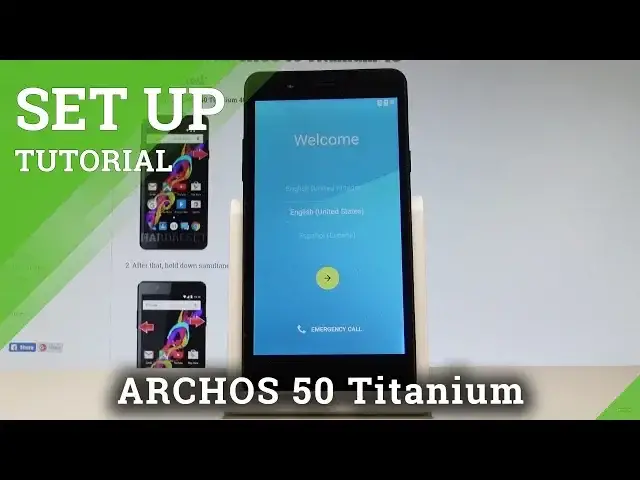
Here I have Arcos 50 Titanium and let me show you how to go through the initializing setup
0:09
process on the following device. So at the very beginning let's start by using the welcome panel, here you can choose your
0:14
desired language, in my case it could be English from United Kingdom, let's go next
0:19
You can insert sim card but you can also skip this point by tapping skip
0:24
You can select a WiFi network if you would like to so let me do it. It's not necessary but the internet access enables you some interesting features
0:32
The phone is checking connection so let's wait a few seconds. The device is checking for the available updates
0:59
And now you can add the Google account if you would like to. So you can do it in two ways, you can create a new account by using that blue link or you
1:05
can use the existing Google account. It's also not necessary but Google account is very useful for using the device because
1:14
it will enable some Google services. So let's enter the email, let's tap next
1:21
Now you have to enter the password so let me do it. Alright, if you entered the password you can choose next right here
1:37
If everything is alright let's accept Terms of Services and Privacy Policy
1:43
The phone is checking info. And now you can setup the payment information or you can choose no thanks so let me skip
2:06
this, choose no thanks
2:17
As you can see here you can restore some backups or you can simply choose here setup as a new
2:24
device and tap done. So now you can have a fresh start, tap skip, skip anyway, tap more, next
2:33
Here we've got the Google Now information, let me skip it, tap next, next a couple of times
2:44
And as you can see you just activate your device. This is the welcome panel, the home screen of your Arcos smartphone
2:50
So everything went well, thank you for watching, please subscribe our channel, leave a thumbs up under the video