0:00
Welcome! In front of me I have Oppo Band and I'm gonna show you how to set up a
0:12
watch face with the custom image on this device. Before we start your smart band
0:17
needs to be paired with a phone via the Haytab Health application. Once the
0:22
devices are paired we can continue and open the Haytab Health application on
0:27
our phone. In the application let's tap on manage and here we should see the
0:34
device page for the Oppo Band. Now let's tap on the my watch faces or edit to
0:41
open the my watch faces menu. Here as you can see we have watch faces category and
0:48
we have five out of five. First we need to remove one of the watch faces from
0:52
our watch so let's tap on edit button. Select the watch face you want to remove
0:58
then tap on remove and tap on remove to confirm and once you remove the watch
1:04
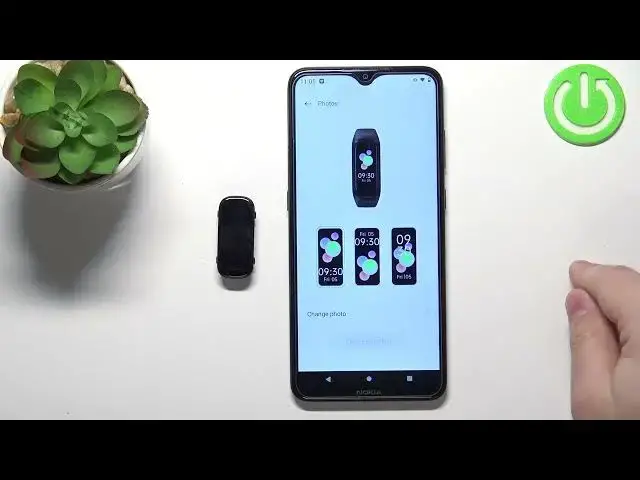
face you should see the four out of five. We can tap on the photos option, tap on
1:12
change photo and we can select option choose from album or camera. If you
1:19
select choose from album it's gonna open the file manager or some kind of
1:25
photos app and there you will be able to select the photo from the phone and if
1:31
you select the camera option it will open the camera app and then you can
1:34
take a photo and use it as the watch face. I'm gonna select the first option
1:39
choose from album, allow the permission and here we have the, as you can see the
1:48
file manager. We can browse through photos, find the photo we want to use as
1:52
a watch face. I'm just gonna scroll all the way down, find the photo here for
1:58
example. Okay let's let's use this. Select the photo by tapping on it then tap on
2:07
select, tap on add and here we can crop the image. Basically we can zoom in zoom
2:14
out and whatever is gonna be on this or rather in in this highlighted frame here
2:21
is gonna be on our watch face. So let's frame it maybe like this. Okay then tap
2:34
on done and here we have a preview of our watch face. We can change the
2:38
position of the time and once you're done tap on add watch face. It's gonna
2:45
start syncing with your smartband. And once it's done the watch face will be applied on the smartband as you can
3:02
see. And that's how you set up the smart, or rather that's how you set up a watch
3:07
face with the custom image on this device. Thank you for watching. If you
3:12
found this video helpful please consider subscribing to our channel and leaving
3:16
the like on the video