0:00
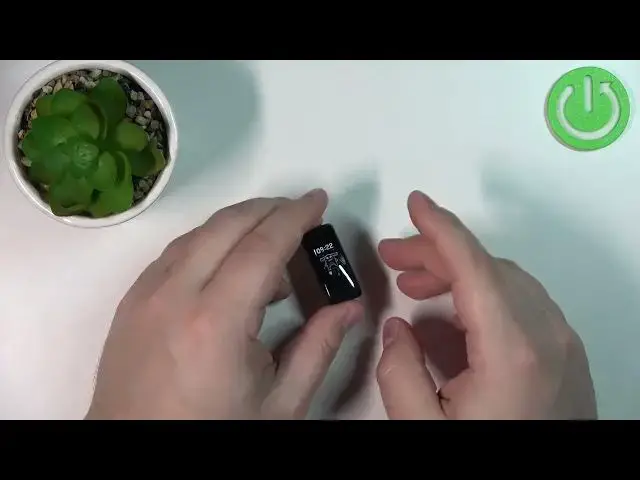
Welcome! In front of me I have Fitbit Ace 3 and I'm gonna show you how to
0:11
factory reset this device by using the system settings on the smartband
0:17
Before we start you will need couple of things to factory reset this smartband
0:21
First you will need a charging cable that was provided with your device, this
0:26
one. And second you will need an access to a computer, working computer or a
0:33
charging brick. So you can plug in the USB end of the charger into it and
0:38
provide the power to the device and charge it. Once you have those things we
0:43
can continue. And first thing you will need to do is to turn on your smartband
0:51
or wake up the screen on it. If you need to turn it on and that's where the
0:57
charging cable comes in handy because to turn on the smartband you will need to
1:02
plug it in into a charger basically, charge the device. And you can do it by
1:06
plugging in the charger like that. Make sure that the pins align with the pins
1:11
on the smartband. So plug it in like this and then second and just plug it into a
1:18
computer. And once the device gets power it's gonna turn on automatically. And if
1:24
you need to wake up the screen on it, it's already turned on but the screen is turned off, you can press the side. On this side you have the touch sensitive
1:32
buttons on the both sides. You can press them like this to wake up the screen
1:37
Okay, once you wake up the screen or turn on this smartband you can swipe down on
1:45
the screen like this to scroll through the menu. Scroll through this menu until
1:49
you find the settings icon and tap on it to enter. In settings scroll down and you
1:54
should scroll down until you find the clear data option. And as you can see we
2:02
don't have it right now. That's why I said we need to have the charger. Because
2:07
if you don't see the option right here it means you need to plug in the device
2:11
into a charger before we continue. So let's plug in the device into a charger
2:18
Like I said before make sure that the pins aligned. So we have the pins like
2:24
this. Just plug it in. Okay, now I'm gonna plug in the second end into a charging
2:36
brick. I have this extension cord so I can basically reach it. So I'm gonna plug
2:41
into this extension like this and now the band is charging as you can see
2:48
Once the band is charging we can again wake up the screen on it and then we can
2:54
swipe down on the screen to scroll through the menu. Find the settings icon
2:58
tap on settings to enter and now when you scroll down you should see the
3:02
clear user data option. For some reason it doesn't show up if you don't plug in
3:06
the device into a charger. Maybe it's for safety reasons so the battery won't
3:11
die during the resetting process and you won't damage your device. But once you
3:16
see the clear data option you can tap on it and then you can press on the screen
3:20
for three seconds to confirm. So hold, three seconds and then the device will
3:28
factory reset itself. So let's wait. You will see the smiling face on the screen
3:37
and once you see this on the screen this means that the factory reset is complete
3:42
and we can unplug the device from the charger like that and now we can pair it with a
3:49
phone so it's gonna be usable again. Okay and that's how you factory reset this
3:56
device by using the system settings on the smartband. Thank you for watching. If
4:02
you found this video helpful please consider subscribing to our channel and
4:06
leaving the like on the video