0:00
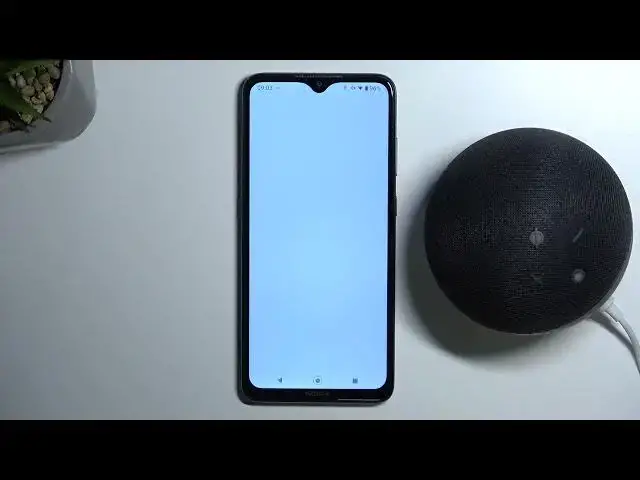
Welcome guys, so in this video I'm going to show you how can perform the first setup of your Amazon speaker
0:10
Okay, so first of all on your device, on your iPhone or Android phone, you have to open the Play Store or App Store
0:17
and you have to simply get the Amazon application. So just take a look, open the store on your phone
0:25
Hello, your device is ready for set up. You have to type, sorry guys for that
0:31
You have to type Amazon on the search pool, and then you have to get this Amazon Alexa application
0:40
We have to get this up. When you download this application, you have to open it. And after that, you have to log in to your account
0:47
with your Amazon account. That's very obvious, right? And next, what do you have to do
0:54
You have to plug your speaker to the electricity. and if you get automatically this orange light it means that the device is in the setup mode
1:03
and you can simply go forward and add it to your app but if your device is not in the
1:10
setup mode automatically what you have to do you have to click and hold this button
1:15
until this orange LED turns on and you will also hear the notification sound
1:27
It is no V-LAN Engristed. To help to get in your Alexa app
1:33
The connection Wi-Fi is not configured. For obtain to lead, rendez-you- in your application Alexa
1:40
Wi-Fi not configured. If there need of assistance, consult a app Alexa
1:45
No has configured any red Wi For opt No you can see right now Okay, as you can see right now, it's turned it on right now to the orange
2:04
and there's also this notification sound. Of course, I'm going to mute it because it will distract you when I record this video
2:12
So what do you have to do right now when it's in the setup mode? simply go for the devices top right here then you have to click on the plus in the right
2:21
upper corner and you have to just simply click to add device okay we can skip this one and for
2:30
sure we are using the amazon echo speaker so pick this one and i'm using the amazon echo dot
2:38
in this video now we have to just grant the permission to the Bluetooth so accept
2:45
And right now our device will be looking for the afflabel devices
2:49
As you can see there is this note about the orange light. It's the setup mode we have to click yes because the orange light is up on our speaker
2:58
And as you can see after a few moments, our smartphone find an echo dot speaker so we have to click on it once
3:06
And right now the speaker will connect to the Wi-Fi network and we will connect to the same Wi-Fi network that our smartphone is already connected
3:14
So in my case it will be hard to reset info 5G Wi-Fi. Just take a look
3:19
Okay, so as you can see, right now I'm connected
3:34
Click continue There is some information about the buttons what they do We can skip and go forward Right now we have to choose a language for our Alexa so in my case it will be English
3:48
Right here we can pick the room, so we can use your groups if you are using any other Amazon devices
3:55
or you can pick the common groups like for example the dining room
3:59
I'm going to pick the office, click Continue. Okay, we have to set it our name
4:16
It was probably some kind of the bug
4:32
Okay, it looks like the application just automatically turn of my account and I have to log in one more time so let me just do this right now
4:47
and the password I'm going to input out of the camera click to sign in
5:06
Click on your name, click to agree and continue
5:17
It's setting our profile and right now we can choose the Alexa to say our name so we
5:25
can turn the volume and click here to play okay it looks like it not working for me
5:44
but i guess it's all about that the volume was turned off
5:49
okay right now i know how it's sound okay it's perfect for me
5:56
So we can go forward and as can see our profile is ready so click to set up other features
6:04
we can allow to access the contacts to make the phone calls
6:11
we can allow choose our favorite contacts. You can also make it later so we can decide
6:20
but I'm going to add all of them. right now we can add the profile for each family member as you can see
6:30
so we can decide if you want to make it right now or later i'm going to skip this step
6:35
actually and that's all click down and as can see right now we are i mean we're finish that's
6:46
the setup of this device so what you what you can do right now just simply go for the other devices
6:52
and if you want to personal personalize any option just go right here. Like for example if you want to connect the speaker as Bluetooth, there's the option
7:02
You can add the alarm a timer, you can do a lot of things with the speaker. So yeah, that's all
7:07
for this video. If you find this helpful, just remember to love a like, comment and subscribe