0:07
Wymiemy na przykład jest Huawei Watch GT 2e i będę pokazał się, jak to pair to watch with your phone
0:14
Zobaczmy, że musimy zróbować w tym samym samym samym samym samym samym samym samym samym samym sam황em
0:21
I jak widzicie, teraz możemy zainterować się na to, że to jest to
0:25
Simply swipe up and down on the screen like this to scroll through the list of languages
0:32
Find the language you like to use and tap on it to select it. I'm going to select English like this
0:38
Now we need to download and install the Huawei Health app on our phone
0:42
So let's open the App Store on our phone. In my case it's going to be Google Play Store because I'm using the Android device
0:50
Let's open it. In the App Store let's tap on Search right here
0:53
i tak w Huawei Health. Jak tak. Then tap Search button
1:04
And on this page let's tap on Install button, tap on Open button to open it In the tym momencie w tym momencie agile Now we need to login to a Huawei ID account
1:28
You can also create a new one. To do it, tap on register
1:32
I already have an account, so I'm going to tap on here. Enter my email address
1:38
Then tap right here and enter the password. So give me a few seconds
1:46
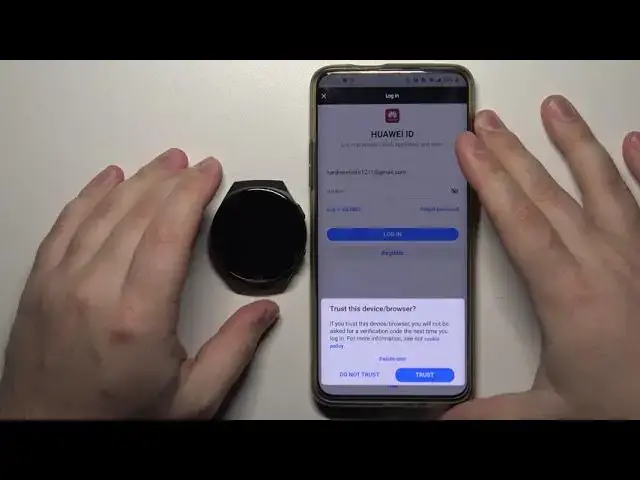
After you login, you can tap on trust or don't trust. Basically, the app is asking you if you trust this device
1:55
If it's your phone, tap on trust. If it's not, tap on don't trust
1:59
I'm going to tap on trust. Now we can allow or deny some permissions
2:06
To do it, simply tap on allow or deny. I'm going to allow them. Like that
2:12
And here we have the Huawei Health app. You should see the health page
2:17
Now let's tap on devices right here at the bottom. Tab on Add
2:23
Select Smart Watch category. Wait until the list is done updating. And here we have Huawei Watch GT2 Series
2:33
And this is like whole series of Huawei Watch GT2 Select it Then tap on Pair Now your phone will start looking for your watch As you can see it found a different one
2:48
Wait. And here we have our Huawei Watch GT2e. Let's select it
2:58
Now we can select or check the boxes to auto-download the updates over Wi-Fi and auto-update our watch
3:04
If you want to do it, simply check them by tapping on them. And once you're done, tap on continue
3:10
Now we can enable the notifications for our watch if you want to. To do it, tap enable
3:15
If you want to skip this, tap on cancel. I'm going to tap on enable. Here, let's tap on the screen
3:21
And now we need to enable the notification access for the Huawei Health app
3:25
So we can basically use the notifications on our watch. To do it, find the Huawei Health app on this list
3:33
tap on the switch next to it, like this, and tap allow, like that
3:38
Now we can go back to Huawei Health app, like this, and here, as you can see, we have a list of apps we can enable the notifications for
3:48
Basically, you can tap on switch next to the application to enable the notifications for it
3:54
for example WhatsApp Gmail Calendar and so on and so on Mo te przytrzyma notifications na by simply zabi na to jak to Mo te zabi notifications
4:07
jako w tym, by zabić przycisk na to. Zabić notifications na to
4:13
i zabić zabić, jak to. Zabić notifications na to, na to, i zabić OK. Zabić
4:24
allow some permissions by tapping allow or deny them by tapping deny
4:29
I'm going to deny them this time and then tap OK right here
4:34
And here you're going to be asked if you want to allow Huawei Health App access for location
4:41
all the time. So basically not only while you're using the app, but hold time. I'm going to deny this, but you can
4:49
also tap on Always On if you want to. And here we have the
4:53
Huawei Watch GT 2e page. Basically, the page for our watch. Here we have a few settings
5:00
And if you see this page, that means that your watch is paired with your phone. Thank you for watching
5:06
If you found this video helpful, please consider subscribing to our channel
5:10
and leaving the like on the video. Dziękuję