0:00
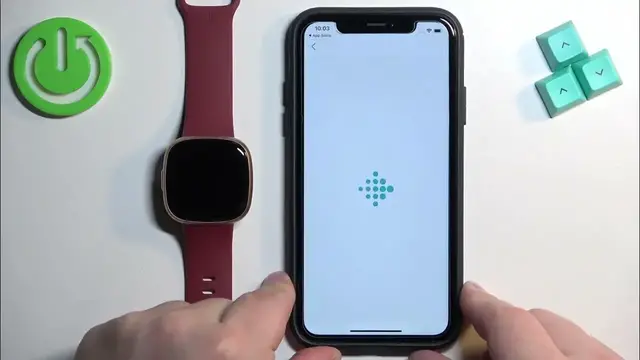
Welcome! In front of me I have Fitbit Versa 4 and I'm gonna show you how to
0:05
pair this watch with an iPhone. First thing you will need to do is to turn on your watch and you can turn it
0:13
on by pressing and holding the side button and after the watch turns on you
0:18
should see the list of languages on the screen. If you see it you can scroll through it by swiping up and down on the screen. Once you find the language you
0:25
would like to use on your watch tap on it to select it and then you will see
0:29
this message. Basically it says that we need to download and install the Fitbit
0:33
application on our iPhone. So make sure you have the internet connection and
0:37
Bluetooth enabled on your iPhone then open the App Store. In the App Store tap
0:42
on search then tap on the search bar and type in Fitbit and tap on search
0:50
Find this application Fitbit Health and Fitness tap on it then tap on the get button to download and install it
1:04
Once the application is done installing you can tap on the open button to
1:11
open the app. In the app you may see this pop-up on the screen the about Bluetooth
1:16
tap on OK and then you will need to log in into Google account or Fitbit
1:21
account. I'm gonna use the Fitbit account but you can use Google account if you want to. Now let's enter the email address and password then tap on sign in
1:41
and once you log in you may see more pop-ups about permissions. This one is
1:45
for notifications so if you want to receive the notifications from your phone
1:49
on your watch you need to allow this permission. If you don't care you can deny it. And right here I can move my Fitbit account to Google account. I can
1:58
basically merge them together. I don't want to do that so I'm gonna tap on no thanks and got it and then tap on continue continue and here we can
2:07
choose what we want to focus on with the app. I'm gonna select see better but you
2:13
can select anything else if you want then tap on save and at this point you
2:18
should see today page of the app. Now tap on the icon in the top left corner
2:23
to open the connected to Fitbit page and here tap on add device. Now find the
2:30
Versa 4 watch on the list and tap on it then tap setup scroll down tap agree
2:36
next oh my bad. Once you tap on next the app will start looking for the
2:43
nearby devices. As you can see it detected our watch we need to enter the
2:47
code from the watch. If you see this pop-up tap on pair and again we can
3:00
allow or deny the permission for the notifications. Here you can purchase a
3:05
protection plan if you want to. I'm gonna tap on not now then we need to update
3:10
our watch. This is mandatory we can't skip it basically which is weird. I don't
3:14
like this feature but it is what it is. So let's tap on update now and let's
3:20
wait until it's done updating. It seems like the app is stuck on the update installing but the update is done
3:42
installing already on the watch as you can see we can use it. So what I'm gonna
3:46
do is to close the app and reopen it and let's see what's gonna happen. Now we can
3:53
tap on the icon in the top left corner tap on the Versa 4 and we have the update
3:58
tracker message. Let's tap on it scroll down and tap on I agree. Next and it's
4:08
gone so something froze up on the app. As you can see it's gone now and we can
4:12
use our watch and that's how you pair this watch with the iPhone. Thank you for
4:17
watching if you found this video helpful please consider subscribing to our
4:21
channel and leaving the like on the video