0:00
Welcome! In front of me I have AGP Tech LW11 smartwatch and I'm gonna show you
0:06
how to pair this smartwatch with the iPhone. First you will need to turn on your watch and you can turn it on by pressing
0:17
and holding the side button for a couple of seconds. And after the watch turns on
0:23
you will need to download and install the FitCloud Pro application on your
0:27
iPhone. So make sure you have the internet connection and the Bluetooth
0:31
enabled on your iPhone. Once you do open the App Store. Where is the App Store
0:38
Right here. In the App Store tap on the search icon, tap on search bar, type in
0:47
FitCloud Pro and tap on search. You should see this application on the list
0:59
FitCloud Pro. Tap on it, tap on the get button to download and install it and
1:05
let's wait until the application is done installing. After the application is done
1:13
installing you can tap on open button to open it. As you can see we have the
1:22
pop-up about the permission. This is for the Bluetooth. This one is required so
1:25
tap on OK and now you should see the login page. And we have another pop-up
1:33
about the tracking. If you want to allow the app to track your apps and websites
1:39
you can tap on allow. I'm just gonna tap on ask not to track basically
1:44
Okay now we have the login page and here we can create a new account, login or use
1:51
the app as a guest. If you want to have or retain the data about your exercises
1:59
and stuff like that it's recommended to make an account. If you don't care you
2:03
can simply use the guest account. So that's what I'm gonna do but
2:07
if you want to keep your data about your training and stuff like that you
2:12
need to make an account basically. So I'm gonna tap on visit as guest right here
2:16
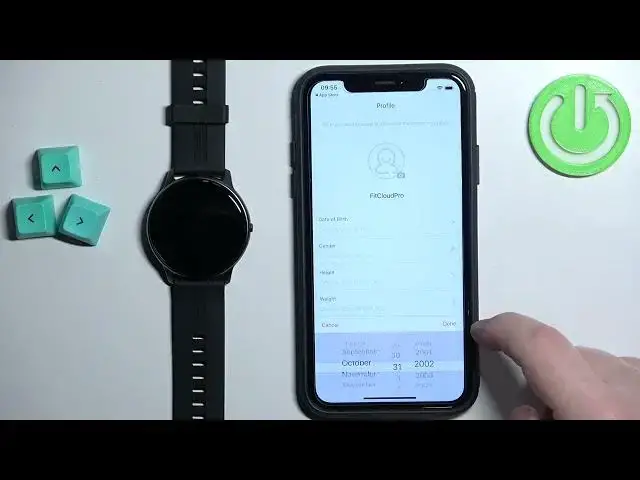
set up the profile like this
2:30
and once you're done you can tap on next step. Here you can set the goals for
2:42
your steps. You can swipe up and down and then tap on complete
2:46
and once you're done with the profile and goals you will see this page and
2:50
basically we can pair the device with our iPhone. So make sure your watch is
2:55
turned on. Once it is tap on search now. The app will start looking for the
2:59
nearby devices. As you can see it detected our watch LW11. Tap on it to
3:06
select it. Tap on pair. You can allow or deny the permission for the
3:17
notifications. Basically if you want to receive the notifications from your iPhone on the watch you need to allow this permission. If you don't care you
3:24
can deny it. I'm just gonna allow it and once you're done with the pop-ups you
3:29
should see the enjoy now button. Tap on it and this will bring you to the device
3:34
page and on the device page you will see that the LW11 is here and it says
3:38
connected which means that the watch is paired with your iPhone. And that's how
3:43
you pair this watch with an iPhone. Thank you for watching. If you found this video
3:48
helpful please consider subscribing to our channel and leaving the like on the video