0:00
Welcome and Fonam is a Sony Xperia 1 and today I'll show you how to transfer
0:09
files from your device to an SD card and vice versa. So to get started we will
0:14
need to open up the files app which can be found right here and in here start
0:21
off by tapping on three dots and selecting where I have... let me just show
0:26
how it's supposed to look. So by starting off by showing internal storage. So when
0:32
you tap on this it will give you the internal storage right on the panel
0:36
right here. Before it would not be visible. So now that it's visible you can
0:41
tap on it and it shows the structure of the device in a way of
0:46
folders. So just a quick tip, videos, photos captured with the device will
0:54
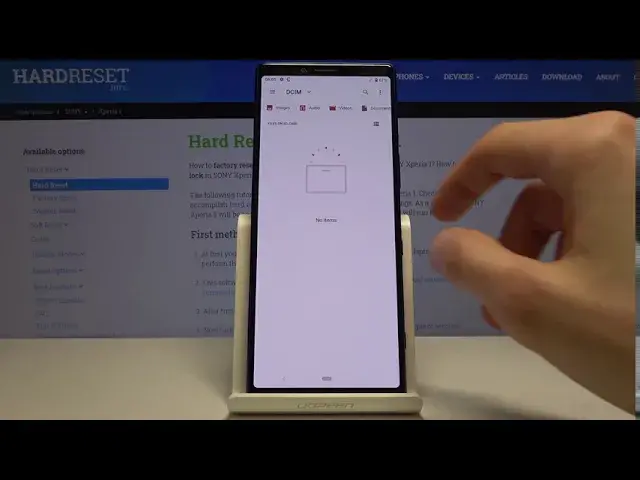
always be located under the DCIM folder as you can see right here. That's the
1:00
camera pro and project. Now it's a little bit more convoluted when it comes down
1:05
to the the pro app for recording but if I were to quickly capture a couple
1:12
photos right here and go back you will see that now I have the two photos just
1:20
simply right here. Then downloads folder will contain anything that you have
1:26
downloaded using either your web browser or email. So that would be either
1:30
documents, photos, videos, music. Whatever it is it will always be in the downloads
1:36
folder as long as it was downloaded. Then movies and music will contain files that
1:44
well you place usually yourself in there so you probably know that they're
1:48
located there. And pictures contains most of the time screenshots. So that
1:56
being said that you know majority of the locations of different files you can
2:01
begin to find yourself all around this entire folder structure here. And also
2:09
these files for instance photos like from the DCIM folder can also be found
2:14
on an SD card. So you will see that the SD card also has basically the exact same
2:19
folder structure. And the difference is this this place is empty. There's nothing
2:24
on here right now. The device looks like by default saving to itself
2:29
rather than the SD card. So let's start off by opening up the photos that I will
2:35
use as an example. So I have those two photos right here and you want to
2:41
number one select them. So you select them by holding one and then you can see
2:45
that it has a checkmark. You can feel when it's actually being selected because
2:50
the device gives you a vibration. And then you can tap on additional ones to
2:55
add more. Once you have selected everything that you want you will tap on
3:01
the three dots and you have two options. You have copy to or move to. So choose
3:07
whichever one you want to use. While you move the files will be completely removed
3:12
from where they are right now and move to the new location. While copy will just create additional set of the same files. So you will have duplicates in this case
3:19
just in two different locations. So select which one you want. I'm gonna go
3:25
with move. And from here it looks like we're not really sure where. So let's go
3:31
to SD card as a way by tapping on the three bars right there and from
3:37
here I can drop it wherever I want. So I'm gonna keep it a little bit organized
3:43
and go to the DCIM. I'm just not gonna be bothering with creating a folder
3:48
called camera. So from here upon move, copy whichever one you chose and you can see
3:54
that the files now disappeared from their original place and they can now be
3:59
found on the SD card DCIM. There we go. And the same process works for any kind of
4:06
file. So that'd be either documents, folders itself with all of its contents
4:11
Whatever you select always has the same process of moving or copying them
4:18
And if you found this video helpful don't forget to hit like, subscribe and