0:00
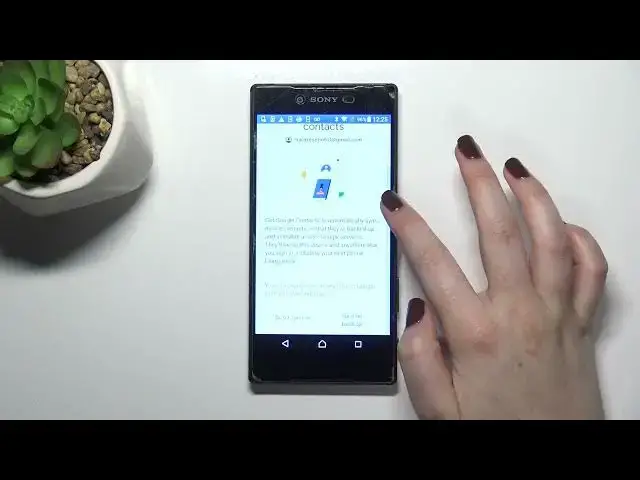
Hi everyone, in front of me I've got Sony Xperia Z5 Premium and let me share with you
0:12
how to manage Google Accounts on this device. So basically first of all how to add it and then how to remove it
0:18
So first of all let's begin with opening the settings and here we have to scroll down until
0:24
we will find the Accounts and Services section. As you can see on the first position we've got Accounts and Sync and of course under
0:32
it we've got a whole Google section and you can add or remove a Google Account using it
0:37
obviously but I personally prefer to do it using Accounts and Sync
0:41
So let me tap on it and here we have to simply tap on Add Account
0:45
Choose Google obviously. Make sure that you've got the internet connection because it is required so you can use either
0:51
your mobile data or the Wi-Fi connection. And here from this tab we can either create a new account if you do not have your own
1:00
yet or simply type your email or phone. So let me do it
1:08
What's more you do not have to put the full email address with the add and the end
1:15
Simply the first part of it before the add symbol and your device will just fill the
1:21
rest of course if it is a Google account I mean Gmail account
1:25
And right now we have to enter the password so let me do this out of the screen
1:33
Okay so let's tap on Next. Here we've got some information about the backup so we can decide if you want to turn
1:44
it on or off. I don't want to turn it on right now so simply let me tap on it
1:49
But I highly recommend to tap on to enable the backup. Right here we've got a Google Terms of Service and Privacy Policy so of course you can read
1:57
it simply tap on it and here you will have all the info if it will be loaded of course
2:04
So let's tap on I agree after reading. And here we've got some information about the backup and storage so just simply scroll
2:16
down and tap on accept and as you can see here we've got our Google account which we've
2:21
just added so that's quite simple. Even simpler is the removing the account
2:28
So let's simply tap on it. If you want to remove it tap on the three dots icon and tap on remove account
2:35
Tap on remove account again. If you are sure tap on OK
2:41
And if you've got a pattern or a pin then enter it because your device will require
2:46
you to do it in order to confirm the whole step. OK let's get back and as you can see this list is empty which means that we just successfully
3:03
removed our account. So actually this is it. This is how to manage Google account in your Sony Xperia Z5 Premium
3:10
Thank you so much for watching. I hope that this video was helpful and if it was please hit the subscribe button and