0:00
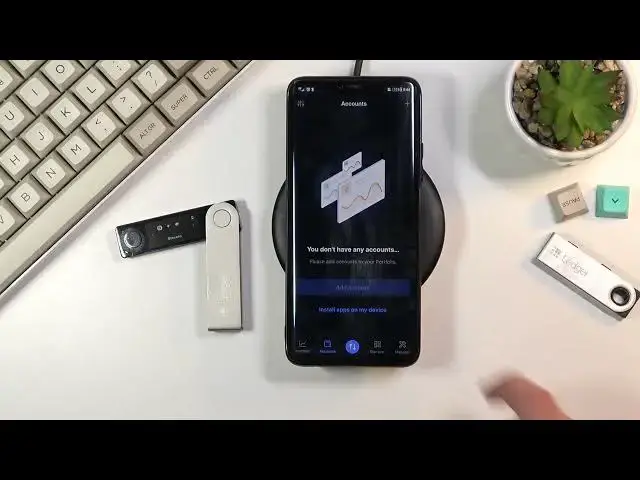
Welcome, in front of me I have the Ledger X or Ledger Nano X and today I'll show you
0:13
how to install your Bitcoin account to it. So to get started you will need to number one power this on as you can see it is powered
0:22
on and set up and from there on your phone you do need to download the Ledger live application
0:29
either on your phone or on the computer I'll be doing this all on the phone so anyway from
0:36
here navigate to your Play Store or App Store depending if you're using an iPhone or an
0:42
Android phone and then search for Ledger as you can see right here and it comes up right
0:47
at the top Ledger Live download it and when you open it up you get a moment obviously
0:55
if you're doing this for the first time you'll probably need to connect it and go to the
0:59
setup of it between the phone and the actual Ledger and once you have done that you can
1:04
then basically navigate to the manager select your device that you have added
1:15
When you're doing this the first time, overall every time you open up the application and you try to access the Ledger it does take a bit for some reason it's not the quickest
1:23
thing so you need to load it in and from here in the dashboard that's basically the Ledger X
1:29
dashboard and you can see all the cryptocurrencies that we can choose from to add to the device now
1:35
keep in mind you can't actually add all of them there is not enough space on the Ledger for some
1:40
reason even though this thing has a battery and fairly chunky size it only comes with 1.8 megabyte
1:46
storage not sure why but you only have to deal with 1.8 megs so obviously that will exclude
1:54
probably a decent chunk of currencies right here from being added to the actual Ledger
2:01
will be a limit to maybe 20 of them or so depending on the size as you can see some of
2:08
them have only like four kilobytes as a Dogecoin does and then some of them have 144 kilobytes so
2:17
it just depending what which ones you choose it will vary and how many can fit on to the Ledger
2:21
itself but we're going with the Bitcoin anyway so let's select install button now Bitcoin as one of
2:27
those that it's basically right at the top is the most popular and it's jammed everywhere right at
2:32
the top of the list so no need to actually search for it now installing it will be a little bit
2:39
lengthy it is going through Bluetooth and even though it's just 64 kilobytes and size as you
2:47
can see it's taking way too long now while this is installing I'm gonna also mention that when
2:58
you install your any kind of currency wallet onto the device it still does not actually have
3:06
the account behind it so you do just have a wallet for this kind of currency but you still don't have
3:13
any kind of info where word that would need to arrive to the cryptocurrency so quickly to go
3:22
can see it you're going to the account add account again add account select Bitcoin obviously because
3:30
that's kind of what we're going with choose your Ledger now on the device and just press the two
3:35
keys to confirm open up Bitcoin a wallet and give it a second again it's showing it up already but
3:50
there we go you need to wait till it actually stops sinking and you can select continue and
3:56
from here go to account and there is our wallet so and here you can now select buy or receive when
4:05
you select for instance receive I can select the Ledger itself but you can also do it without it
4:11
right here so this would just give you the actual number of the wallet right here which you can
4:17
copy you also have the QR code to skin it and the way you do it is basically when you're trying to
4:25
set up the entire like wallet and everything you will choose this wallet address right here and
4:32
wherever you're mining your Bitcoin it will then come to the phone itself right here so on here and
4:40
from there you want to connect those two together and send send the Bitcoin from the phone that is
4:47
on this account to the actual Ledger which will make it go offline but anyway that was just a
4:53
quick little overview how to also add the actual wallet itself number to it so anyway if you found
5:01
this video helpful don't forget to hit like subscribe and thanks for watching