0:00
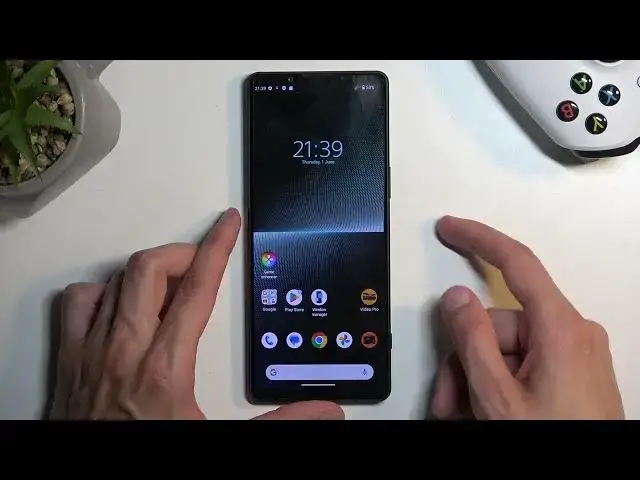
Welcome, Efran Aminze, Sony Xperia 1 Mark V
0:03
and today I will show you how we can hard reset this phone through recovery mode
0:13
Now, before I get started I'm going to quickly mention that this process allows you to remove
0:17
a screen lock. Though I don't have one set this will still function the same way
0:23
But I guess I can just set it up before we get started. Now, that being said, there is one
0:28
little caveat. So typically when you do this kind of method of resetting your device, when you have
0:34
a screen lock that you don't know, which I do want to stress, don't know specifically, and you are
0:40
also logged into your Google account, this will basically make it so your device becomes FRP
0:44
locked. And what FRP lock is, it's basically a lock that will force you to verify either the
0:53
previously used Google account or screen lock when you're going through the setup of the device
0:59
after the reset. Now, without knowing either one of those, your device basically becomes unusable
1:06
So I do want to stress this before you begin. If you don't know either of those
1:11
obviously removing a screen lock won't help you if you don't know the Google account. Now, additionally, I'm going to mention that for most of the devices I tend to record bypass of
1:23
this FRP lock. But as of right now, for this device, it's relatively new. I have no method
1:32
that I know of that will get rid of the or allow me to bypass this and then remove it
1:37
So at this moment, I have no way of unlocking the device if I don't know either one of those
1:45
So I just want to point that out. Now to get started, lock the device and progress from the lock screen as though I wouldn't know my pattern
1:53
So number one, we're just gonna pull down our notifications, we're going to select the power button, and we're going to choose power off
2:00
Once the device turns off, we're going to hold the power button
2:04
and the volume down at the same time. So here and here
2:14
Now when you see the Sony logo, let go of the power button
2:22
This will take us to the recovery mode. Now in here, using volume buttons
2:26
using volume buttons, specifically volume down, you want to navigate down to select wipe data
2:32
slash factory reset, and confirm it using your power button and select factory data reset
2:40
As you can see, at the bottom, you will see data wipe complete, it happens pretty quickly. And at that point, reboot system now will be selected by default. So we're going to press
2:47
our power button. Once again, this will now reboot the device and continue resetting it
2:52
in the background. So this will take about a minute to two minutes to finish up and once
2:57
it's completed, we'll be presented with the setup screen for this phone. So I'll be back once that is visible for me
3:13
And as you can see, the process is now finished and you can set up your device however you like
3:18
Now if you found this very helpful, don't forget to smash that like button, subscribe
3:21
and thanks for watching