0:00
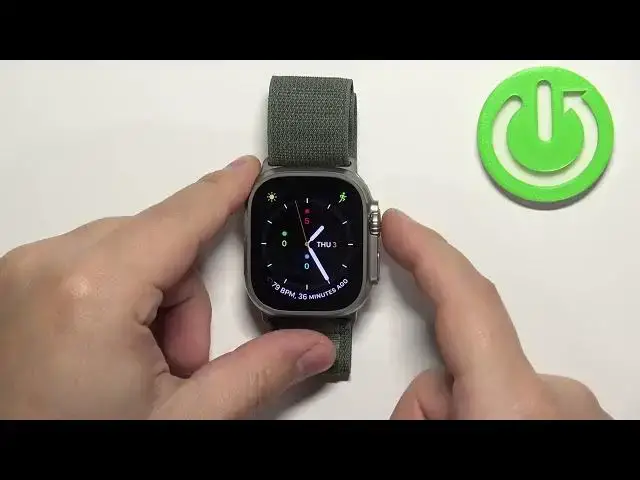
Welcome! In front of me I have Apple Watch Ultra and I'm gonna show you how
0:04
to change the screen timeout duration on this watch. Basically how quickly the
0:09
screen will turn off after we stop using our watch. First let's wake up the
0:17
screen on our watch. You can do it by pressing any of the buttons. Once you
0:21
wake up the screen press the crown button to open the menu. Now scroll
0:26
through the menu, find the settings icon and tap on it to enter the settings. In
0:32
settings let's scroll down and find the option called the display and
0:40
brightness. Tap on it to enter. Here scroll all the way down and at the bottom
0:46
you should see the option called wake duration. Tap on it and here we can
0:51
select one of the durations. We have a wake for 15 seconds and wake for 70
0:56
seconds. So basically if you select wake for 15 seconds the screen will turn on
1:02
for 15 seconds and it will turn off automatically. And if you select wake for
1:10
70 seconds the screen will turn off after 70 seconds of an activity
1:16
So select the option you like but be aware that if you select 70 seconds it's
1:21
gonna use up more battery life basically because the screen will stay on for longer period of time. And once you're done you can press the crown
1:28
button to go back to watch face. You can also change this via the phone
1:33
application. So we can move our watch to the side, bring our iPhone, zoom out the
1:39
camera and here on our iPhone that is paired with our watch we can open the
1:46
watch application, scroll down, find the option called display and brightness, tap
1:53
on wake duration and select on one or rather select one of the durations
1:59
And once you're done you can close the application. And that's how you change
2:06
the screen timeout duration on this watch. Thank you for watching. If you
2:10
found this video helpful please consider subscribing to our channel and leaving