0:00
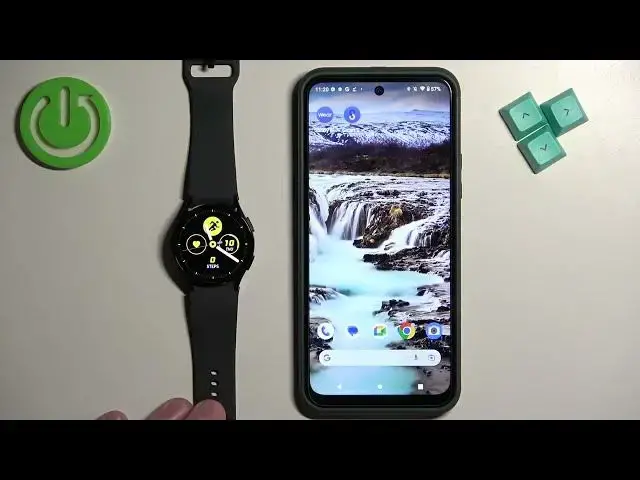
Welcome, in front of me I have Samsung Galaxy Watch 6 and I'm gonna show you
0:05
how to factory reset this watch by using the phone application. Before we start, if you want to factory reset your watch by using the phone application
0:18
your watch needs to be paired with a phone via the Galaxy wearable application
0:22
Another thing to mention is to make sure that the battery level on your watch
0:26
that is above 20 or 30 percent before you reset your watch
0:30
because if the battery dies during the resetting process, it might damage your watch
0:34
Now let's continue with the reset. So let's open the Galaxy wearable application on the phone that is paired with our watch
0:41
Once you open the app, you should see a device page with your Galaxy Watch 6
0:46
Now, tap on the option called Watch Settings, then scroll down, find the option called General and tap on it
0:55
And here, scroll down and at the bottom you should see the Reset option
0:59
Tap on it, then tap on Reset. Here you can backup data on your watch
1:07
So basically, if you don't want to lose your data from your watch
1:11
you can back it up before you reset the watch, because if you reset the watch
1:15
you will lose the data and settings from the watch. If you want to backup the data, tap on Open Smart Switch
1:20
and basically you can use the application to backup the data. I don't need to do that, so I'm going to tap on Don't Backup
1:30
And it's going to start resetting the device. As you can see, now it's going through the reset process
1:36
The watch is going through the resetting process and the app basically removed the watch 6 from the device page
1:46
Basically, it removed the device, so now it's looking for the nearby devices to connect to a detected different watch, as you can see
1:52
Tap on Cancel and wait until the resetting process is complete. And once you see the list of languages on the screen, it means that the factory reset is complete
2:05
Thank you for watching. If you found this video helpful, please consider subscribing to our channel
2:11
and leaving a like on the video. Thank you