0:00
Hi everyone, in front of me I've got Motorola Defi and let me share with you how to use secret codes on this device
0:10
So first of all, let's open the dialer as this is the place where we can enter all of those codes and let me show you the first code
0:18
which is maybe not the shortest one, but in my personal opinion the most interesting, which will open, let's say, kind of engineering mode
0:27
And the code is asterisk pound, asterisk pound. 2486, found asterisk, found asterisk
0:34
And as I said, we are currently in the CQA tests. We've got two different types of tests and some of the modes, like the menu mode, sequence
0:46
mode, assembly mode. Basically, all you can do here, and not maybe all, but everything you can make here is
0:55
simply to check your device, to check the particular component. So I highly recommend to simply enter this first option
1:01
And as you can see, right here you've got some options like the touchscreen, for example, the system time sensor and the key headset, the display camera, Bluetooth, battery and so on
1:13
So here in this section you can not only have fun, just like I will show you later on in the touchscreen
1:21
But also you can check the particular things about your device. So let's, for example, enter the battery
1:28
Let's stop on the battery info. And as you can see, you can check, for example, the battery level
1:33
And of course, you can check it also in the general settings. But here you able to check for example the health and the status and the technology or the temperature of it So that quite cool We can go back and we can check for example the display
1:48
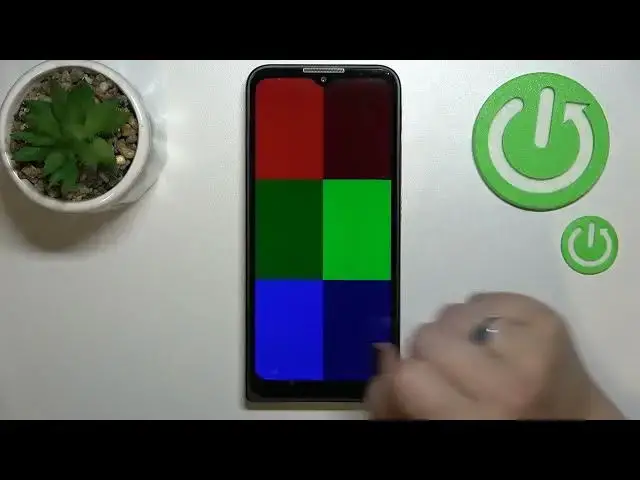
Let's stop on the display. Here we've got the patterns and as you can see here we've got kind of colors or the patterns
1:56
And thanks to which we can check the colors of our device
2:02
Let's say because let me tap on the gray scale. As you can see, right now the grey scale is displayed all across the screen
2:10
And thanks to this, you can check if you can see it properly
2:14
So if you cannot find any kind of white spots or dark spots
2:18
if you cannot, then it means that your screen works perfectly fine. The same situation with all other options, like the medium color bar
2:27
like the bright color bar. Let's go back. And for example, X-Talk is interfering horizontal
2:35
just find it find this section and try all of them in order to check if the display is working perfectly fine
2:45
the same situation can be with the touch screen for example we can pick two different options
2:51
let's say diagonal and here all we have to do is to simply tap
2:55
on this white dot and right now just drag it all across the screen
2:59
in order to check if this particular area is working And as you could see, we've added the green color, which means that of course it is working
3:09
So let's check this one also. And here we have to tap on it and drag it right here
3:15
Just follow this yellow line And as you can see we just checked that the screen is working here So I really highly recommend to enter this section and just try to have fun with your device
3:27
and at the same time check the components of it. So basically, that was all for this code
3:34
And let me show you another one. The code is asterisk pound or six pound
3:40
And as you can see, by this code we are provided with both your main numbers and also a serial number attached to this device
3:46
So let me tap on OK and let me show you another code, which is actually very similar to the previous one
3:53
But this time it will open the regulatory labels. So the code is asterisk pound 07 pound
4:00
And as I said, we are in the regulatory information so here we can check the model for a device
4:05
but also the SAR level, so the head and the body of it
4:09
So let's get back and let me show you another code which will open the calendar info
4:14
And the code for it is asterisk pound, asterisk. pound double to five pound asterisk pound a pound asterisk and as I said we are in
4:23
the calendar info so here we've got all the events in one place we can check some family
4:28
events some holidays in your country should also be right here or events attached
4:31
to your mail so this is the best place to to check the events because here they
4:36
are grouped into particular sections let's get a buck and let me show you another
4:41
code let's say quite technical one which will open the diagnostic mode
4:46
provided by Google. It's asterisk pound asterisk pound 4 to 6 pound asterisk pound asterisk
4:53
and as I said we are in the diagnostic so here we can check the server host port time connected or sign a level we can tap on events and here we got some further details after tapping on the 30 we can show advanced view just tap on it and tap on the status again
5:09
and as you can see we've got much more info so for example we can check the heartbeat last ping
5:14
or hb algorithm let me get back and let me show you um the last code which will open the testing
5:22
menu and the code is asterisk pound asterisk pound 46. p. 36 36. Pound. Pound
5:27
found asterisk. And as I said, we are in the testing mode. So here we've got
5:32
among the others phone information, Wi-Fi info or the NFC settings. So let me start
5:40
with the phone info. As you can see after entering, you can check the info just like the
5:44
email number and the roaming the data service or voice service. Of course, I know that I
5:51
do not have any info right here. It is because I do not have my SM card inserted. You can
5:56
run ping test here. As you can see, you've got the results. And after tapping on the 3
6:01
I can enable data connection or view service and ILE in numbers. Let's get a bug and let me show you
6:08
for example, the Wi-Fi info. Just tap on the status. And as you can see, after refreshing the
6:14
stats, you can check the network state, SSID or network ID. You can also run PIN test here
6:21
So basically that's all. This is how to use secret codes in your Motorola Defi. Thank you so
6:26
much for watching. I hope that this video is helpful and if it was please hit the
6:30
subscribe button and leave and a thumbs up