0:00
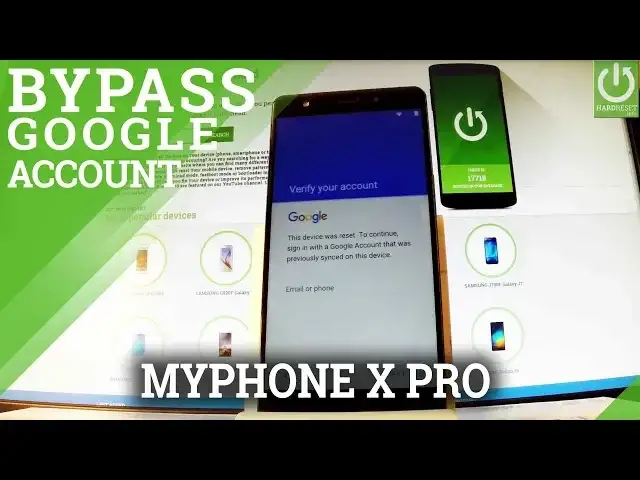
Here I have my phone X pro and let me show you how to bypass Google
0:08
verification on the following phone so how to remove factory respect protection
0:12
As you can see here I have my device after your harddust operation and at this point of
0:16
initializing setup process I have to input my Google email and password so let me
0:25
let me show you how to bypass this step as you can see I can't bypass this step by
0:29
using next button right here so let me show you have to do it in another way let's
0:34
active a keyboard afterwards you have to tap the more button right here in that
0:38
corner it's more Swift key let's tap it right here here you should choose
0:44
accounts the first section right here and let me choose share Swift key the list of
0:53
apps up now we have to start holding Gmail let's hold down Gmail for a little
0:58
bit longer and as you may notice the app info appears on the screen you should
1:03
choose notifications select app settings then choose more key right here in that
1:10
corner and choose manage accounts tap continue and as you may notice the my phone
1:16
settings just pops up so it's a good sign that's what we need let me scroll down
1:22
and let's choose Google in the person section here you have Google let's tap it then select search and now select now
1:36
cards right here and here you have show cards features let's open and let's
1:42
enable show cards by using the following switcher choose no thanks and now you can
1:49
use a Google browser internet browser so let me type in Chrome the Chrome app just pops up so let tap it
2:00
Choose accept and continue, select No Thanks. And now you can use a Chrome Searcher
2:06
So let's type in the following phrase, test DPC
2:17
Make sure that you type in the correct text. and let's tap search. Let me change my results to English
2:27
And let's use the first link which is TestDBC 2.0.6. Let's tap it
2:34
Scroll down and choose download AP key right here. As you may notice your download is starting so let's wait a few seconds
2:49
Choose update permissions, tap allow Chrome to access photos, media and files on your device
2:59
Tap okay to the following warning. And now you can open your app by using this app key, so let me tap it
3:09
And as you may notice the downloads folder just pops up and here you have your app that you
3:14
previously downloaded. So let's tap this app. install blocked but let's go to settings and let's enable unknown sources
3:24
Tabokk to confirm it. Let's go back and choose our app one more time
3:30
Now we can choose install. Testdbc is installing. Let's accept the following information
3:37
Let's open our app. Now it's important to choose setup device owner
3:44
The second option right here and choose setup setup tap encrypt and now you have to charge your battery to at least 80
3:56
And also you have to connect your phone with a charger. So let me do it
4:01
Let me wait a few seconds. You have to prepare a charger
4:05
So let's go. connect our phone and as you may notice right here you can now choose
4:25
encrypt phone so let's tap it let's tap it twice now the phone is encrypting let's
4:31
wait until the whole operation will be completed it may take a few seconds or a few
4:46
Excellent, as you may notice, the welcome panel just pops up
5:02
Let's disconnect our phone from a charger. And now let's go through the initializing setup process
5:09
Let's tap next. The following screen should pops up. Let's choose setup
5:14
to the following warning the app is setting the device owner let's wait a few
5:19
seconds choose got it and select set set up phone right here when the following
5:26
screen appears one more time start holding power key then from the following
5:31
screen let's choose reboot tab okay to confirm it wait until your phone is
5:36
completely restarted Excellent let unlock the screen Let skip the following information so let tap skip and choose next tap finish tab OK and got it
5:58
As you can see now you can use your device, but some apps are disabled, so all you have to do is find and select settings right here, scroll down to personal tab, choose backup and reset, select factory data reset
6:11
read the information on the screen and choose reset phone choose erase everything and now the device is performing one more time the hardest operation let's wait a couple of still
6:22
seconds until the whole operation will be completed Excellent, the welcome panel just pops up, so let's go through the initializing setup process one more time
6:49
Let's choose next. Let me just quickly skip inserting SIM card and skip connecting to any Wi-Fi, so let's skip it, skip anyway
7:00
Choose next to date and time and to settings of the owner
7:04
Let me tap no thanks to protect my phone. So skip it, skip anyway
7:11
Let's leave all Google Services settings default. Let's tap next and use the home button right here
7:20
Tap okay and got it and as you may notice right now the whole list of settings appears on the screen
7:26
Now you can use your device. You just erase the factory rest of the protection
7:31
Thank you for watching please subscribe our channel and leave thumbs up under the video