Up next in 10


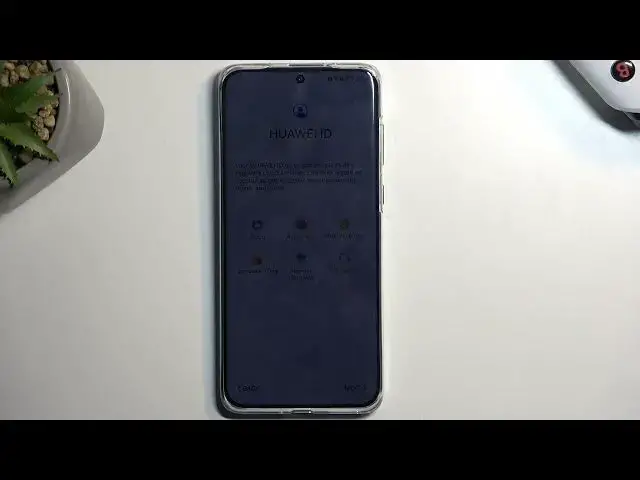
This tutorial video will guide you through the initial setup process of your HUAWEI P60 Pro. We'll walk you through the essential steps to get your new device up and running smoothly. From selecting your preferred language to connecting to Wi-Fi, setting up accounts, and customizing key settings, you'll learn everything you need to know to complete the first-time configuration of your HUAWEI P60 Pro.
Check our website: https://www.hardreset.info/devices/huawei/huawei-p60-pro/tutorials/
How to choose the language during the setup process of HUAWEI P60 Pro
Setting up Wi-Fi on HUAWEI P60 Pro: Step-by-step guide
How to create or sign in to your Google account on HUAWEI P60 Pro
huaweip60pro #p60pro #huawei
Follow us on Instagram ► https://www.instagram.com/hardreset.info
Like us on Facebook ► https://www.facebook.com/hardresetinfo/
Tweet us on Twitter ► https://twitter.com/HardResetI
Support us on TikTok ► https://www.tiktok.com/@hardreset.info
Use Reset Guides for many popular Apps ► https://www.hardreset.info/apps/apps/
Show More Show Less View Video Transcript
0:00
Welcome. In front of me is a Huawei P60 Pro, and today I will show you how you can go to the setup process of this device
0:10
So when you put it up for the very first time, you'll be presented with this language selection, which is very weird
0:18
but simply find a bubble that has your language on it. For me, it already has English selected by default, so I'm going to now select Get Started
0:26
Now, when it comes on to selecting region, I choose your correct region. As you can see, they ditch the bubbles here, fortunately
0:34
So we have easier time of finding our language and this nice, more professional-looking list
0:41
From there, we can move to the next page, which is Terms of Use
0:45
Now here we just need to select the first one, and that's really the only thing that we need to select
0:51
Obviously, if you are interested in the end-user software license agreement, which is what you are agreeing to
0:57
you can tap on details to see the Internet, entire legal document
1:03
From there, we can go to the next page, which allows us to insert a SIM card
1:07
Now, this step is completely optional. You don't need to insert a SIM card right here, or draw any step
1:13
But we will need to connect to network, and that can be done either through a SIM card
1:18
or through Wi-Fi. Now, for some reason, we are forced to connect to it, even though there is really no reason
1:26
for us to be required to do so, especially when this. device has already been set up once before. Samsung, for instance, wants their devices to be
1:35
connected the very first time, but afterwards, if you don't need to, like, verify anything
1:40
you can just set it up without network. Huawei always wants your data, so connect to network
1:46
As you can see, I cannot move past this, I cannot skip this, so I need to have some kind of
1:53
network connection for some absolutely stupid reason. So now I'm going to connect to it
2:00
There we go. And once I'm connected, I can actually finish up the setup
2:09
I love the setup that doesn't allow me to set up my device the way I want to
2:12
but the way the company wants to. That's a very good way of dealing with your customers
2:19
or whatever you want to call it. Anyway, here we have some data and privacy
2:25
which is very rich coming from Huawei. You can tap on details to read exactly what..
2:30
what the privacy that they're talking about is. And from there we can go to the next page
2:34
We don't even get to agree or disagree with this. We're just presented with the fact and move past it
2:40
Then we have device protection. So here we have several different ways or methods of protecting our device Now the typical one under the password we have the pin pattern or password We click right here So four digits six digit the pattern or password
2:55
You can choose whichever one you want. Let me just move back
2:59
And we also have fingerprint and face recognition. Now when it comes down to these two
3:05
you will always be also required to have a physical way of unlocking the device that be pin, pattern or password
3:10
Now the reason for that is if something would have up into your face or your finger or both
3:17
you would simply lose access to your device. Thus, this would leave you with a third way of unlocking a device
3:24
through pen pattern of password, which would not vary depending on like
3:28
in what state you are. Anyway, I'm going to skip all of these actually
3:35
There we go. And this will give me some Huawei ID. So this is just a list of things I have access to
3:42
by logging into Huawei ID. Now, if you have never used the Huawei device after the ban
3:51
basically what Huawei ID tries to be is iCloud. That's as easy as I can explain it
3:58
It's basically trying to be Apple of Android in not a good way
4:03
So in general, it will probably be very beneficial for you to log into it
4:09
or create an account if you don't have one, because you do get access with that assets with that Huawei ID to App Callery
4:15
which is aka the Huawei's Play Store or Apple's App Store. We have a couple additional things that we can access here
4:25
like the cloud, which would allow you to restore an old Huawei device through cloud, and some additional things that I don't find as important
4:32
but obviously the app gallery will be probably the main point of logging in
4:38
considering that's where you will be downloading most of your apps from. So to do this overview, you just go to the next page and here either log in with your account
4:46
if you already have one. If you don't, you can select right here, don't have Huawei ID or forget your password
4:53
and then you can then create a Huawei ID. Obviously, if you already have one, maybe you don't remember, you can restore it right here
5:00
And if you don't want to log into it at all, which is completely fine and also viable
5:05
because this is still an Android device, so you can download all the apps from the browser
5:10
without ever needing to log into anything, you could just select maybe later
5:14
and this allows you to skip signing in. Here we have some media services
5:20
obviously more things that we just can agree to, but all these are optional
5:27
so we can select later if you don't want to agree to anything. Then we have HMS core whatever the heck that is which comes with some very intrusive options right here which I recommend changing without like single doubt
5:44
So, number one, we have the odd ID statistics, which is just kind of sharing the statistics of, like, ads and stuff like that
5:53
I don't like it. Bye-bye, disable it. Next cancer here is the personalized aids, odds, I mean
6:00
which basically spies on you and then gives you ads based on your interest
6:05
hey maybe you are talking with your friends about buying a vacuum cleaner guess what you will be advertised with now
6:11
that would be right vacuum cleaners so I find this absolutely intrusive
6:17
to the point that this shouldn't even be legal so I like to turn that off and therefore
6:23
would have been turned off supposedly our ads or as that are being sent to us
6:29
shouldn't be targeted to us based on like what we're talking about or stuff like that
6:34
which still might happen, I assume, because let's be honest, Facebook doesn't really care about this
6:39
so they'll completely be bypassing this option, but this is strictly for Huawei. So if you can turn it off, I recommend turning it off
6:47
And then below that we have auto updates, so I believe this is just update overnight for your phone
6:52
If you want that, obviously turn it on. If you don't, I can keep it off. Then we have enhanced services
6:59
I can read what these enhanced services actually are. I'm going to just skip them
7:05
User experience improvement programs again. More data sharing, which I don't really like
7:11
So I'm going to select later. Share ytics. Again, more sharing. Thanks
7:16
Location services. Again, more tracking, telemetry, stuff like that, which I personally prefer to turn off
7:24
I'll also add that even though I'm basically turning off everything that I can
7:29
for privacy purposes. Believe me when I say that almost nothing gets actually turned off fully
7:34
and all the applications that you will install always have some kind of telemetry
7:39
and they will always be gathering data in one way or another
7:45
And just for the people that don't believe me, you can download things
7:49
like the recently tried an application for this. If I can quickly find it, just to
7:54
give you the name, it's track, what was it? Let's say the entire name
8:10
Track control. That's what it was. Application gives you the option to basically force
8:18
like turn off all telemetry from the device. And what you will end up with is a device that doesn really want to work all that well because no app will allow you to use it without actually tracking you which is absolutely disgusting
8:32
Use manually. Now here we have just keep software up to date. So we can update manually or we can enable the automatic update
8:40
which will also go hand in hand with the update overnight option
8:46
Then we have some data import. So this allows you to import data from an older device
8:49
Now here we have several different ways that we can go about this if you are interested in importing your data from an old device
8:55
So move data from another device that can Let's see be import data from another device
9:02
Both devices must be present This could be through phone clone So this is using their proprietary application called phone clone
9:12
You can download this up From the browser because it's not present at least not the newest version
9:19
is not present on the Play Store because of the ban. So if you're planning to do this
9:24
you'll need to just kind of download it from the browser from I believe their website
9:30
That is for any kind of Android device. That is not Huawei device
9:35
So for instance, I have a Samsung right here. I could download this up on the Samsung
9:39
and then pair the two phones together and move over all the data from my phone to this one
9:44
So that's one way. Another way would be to restore from the Huawei Cloud
9:48
this will only work if your other device is Huawei and that's where the cloud was being created to
9:53
so probably will not apply to majority of the people or a very
9:59
big group and the last option is just a setup as a new device
10:06
so without importing any kind of data and right of the bat on the next page we have the gesture presentation
10:12
so it automatically tries to give us the option to use gestures
10:15
tries to teach us right away So if you know how to use gestures, you can just close this
10:20
If you don't, just go to the guide. But I'm going to close it because I have used it before
10:27
And if you don't like gestures, you can change the navigation method
10:31
If you like them, you can select finished. And this gives us some app gallery application that will be automatically selected
10:39
If you select next, it will download and install them. If you don't want these apps, the quickest way to deselect them would be to select all
10:46
and then deselect all. And this will just deselect all the apps
10:51
and you can now click the next page, don't installing any applications
10:55
and you are now on your home screen. So with this being said
10:59
hopefully you found this very helpful. If you did, don't forget to hit the like button, subscribe, and thanks for watching