live_tv
Livestream Starting Soon
00
Hours
:
00
Minutes
:
00
Seconds
Up next in 10

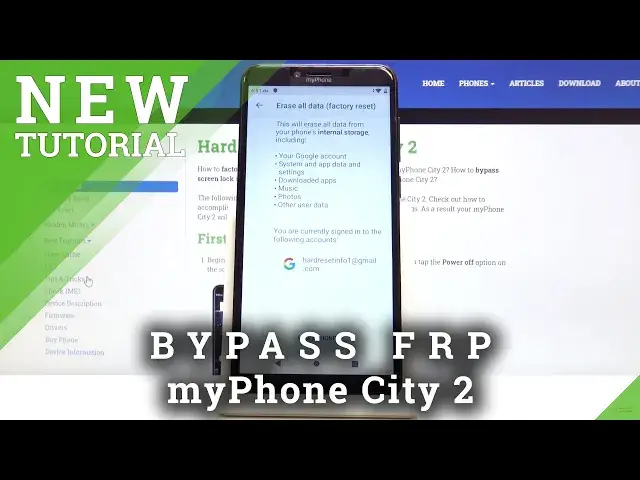
How to Bypass Google Protection in myPhone City 2 – Skip Factory Reset Protection
May 16, 2024

More info: https://www.hardreset.info/devices/myphone/myphone-city-2/
Find out how to skip Google Verification in your myPhone City 2. Take a look and discover this effective method of skipping FRP in your smartphone. Follow presented steps and smoothly unlock your device. Find out the best way to skip Google Verification in your Android mobile. Learn how to remove the Google protection and log in with another account. Easily unlock protected myPhone City 2.
How to Bypass Google Verification in myPhone City 2? How to skip FRP in myPhone City 2? How to skip Google Verification in myPhone City 2? How to Bypass FRP in myPhone City 2? How to unlock myPhone City 2?
Follow us on Instagram ► https://www.instagram.com/hardreset.info/
Like us on Facebook ► https://www.facebook.com/hardresetinfo/
Tweet us on Twitter ► https://twitter.com/HardResetI/
Show More Show Less View Video Transcript
0:00
Welcome
0:02
In Frontome is a My PhoneS32 and today I'll show you how to bypass the Google
0:10
verification screen. So as you can see the device of Frontommy is already locked and can either use the pattern
0:17
or the account to unlock it. So there we go, verify your account
0:26
So to get started with the bypass, one to number one, connect to Wi-Fi. Wi-Fi and also change a language
0:36
So change the language to any kind of language that has a different keyboard
0:39
You can switch. For instance, Greek, probably Russian. So once you change it, we can start
0:48
Skip this. Go back from here to Wi-Fi. Just add another Wi-Fi
0:57
and then top on the plus. So you can get a pop-up
1:01
From here, you want to hold a spacebar. It gives you the language options
1:07
So number one, change to QWERTY, which is the second one. There we go
1:12
And hold it once more. And now choose the last option. The button right here
1:18
And then top on the bottom. There we go. And choose one of the options that has in the bottom
1:27
arrow right there should be good enough tap on three dots and want to go to
1:32
help and feedback which is the second option and in the search field for help
1:38
and feedback you want to type in Morse code or M will use Morse code there we go
1:57
There you finally found it. Okay, so once you see the video you want to tap on it to start loading it
2:07
And then you'll have the three dots up here in the corner. So you can tap on it and one of the options is now watch later which is the clock
2:14
So you want to tap on the clock right there. And it will launch Chrome
2:20
So from here tap on the bottom to accept and we don't want to log in
2:26
then tap on the search bar up on the top and navigate to hard reset that info
2:33
Okay, and once it loads you want to tap on the bars up here, can access the mini
2:50
And choose download. Again scroll a little bit down and in a download field you want to search for Android 8
3:03
Android, hey, there we go, and search. And you'll see the bypass FRP and then below you have a download button, so click on that and again scroll down
3:17
and you will find download right here. So simply tap on it
3:24
Now Google will try to block it so click over here and then allow to access storage
3:30
which anything that you want to allow and permit is located on the right side
3:34
anything on the left side is basically a denial so cancel deny stuff like that
3:41
okay so it looks like either it's not downloading or okay so if you have the same
3:50
problem that it never finishes downloading it's stuck out 100% just cancel
3:55
that I don't know how to fix that that part try it again I think it's going to start downloading again or not okay so that
4:07
okay so if you have the same problem that it never pops up that it has finished
4:11
downloading and you have the like open button and blue text you want to hold
4:15
the download button like so and choose the second option right here it opens up
4:20
the link in a incognito and for some reason then it downloads it no problem
4:25
so here tap on okay and tap on open That was the link
4:32
So again on the right side, affirm, you want to enable so Google can install, go back and install
4:41
All the options that I'm pressing are primarily located on the right side as everything that I'm trying to do is, well
4:48
kind of confirm everything and allow. So once it's done installing, you want to open it, which again is the option on the right side
4:57
and it opens up the FRP bypass app. Now from here you want to start up by tapping on Google Account Manager APK install
5:05
and choose for version 6.0 and again same process we need to allow
5:10
switch that on go back and install This time around we don actually open it we just click on done Just a second actually like a denial you can also click on back
5:25
So we should be back in the FRP bypass up and now what you want to do is stop on bypass
5:31
FRP right here, select browser sign in, tap on three that's up here and choose browser sign in which is the only option that comes up
5:40
there we go and tap on okay and you should have the Google page with login so you can
5:53
log in with any kind of Google account as long as you have one if you don't have a
5:56
Google account you can create one on your computer or a different device and then
6:01
use it to log in over here now I already have one so I'm gonna use it
6:10
Okay, let's go on, and now let's put in the password. So I'm going to do that off the screen
6:27
Again, top on the button to proceed. It will start logging it, and then it will go back to the FRP app
6:34
So from here, hold the power key and select. which is the circular arrow confirm it by tapping on okay and wait for the advice to
6:45
boot back up okay so let's go back back and change the language back to English
7:04
Okay, and let's start. Skip this
7:17
Step from don't copy
7:32
and you'll now see account added so that's the account that i have provided before i
7:43
restarted the device and it basically recognizes that account as the previous one and automatically
7:49
pass let allows you to pass through it so it up on next Now once we get access to the home screen we
8:02
then want to go into settings and perform another reset of the device which will remove the
8:08
account this one and the previous one altogether and the device will be fully unlocked at that
8:14
point. So we're going to just primarily skip through most of this
8:21
Okay, so once you see the home screen, let's go into the settings
8:26
Scroll down to system, advanced reset options and erase all data factor reset
8:33
And as you can see, performing this will remove your Google account and here's a provided
8:38
account that it will remove. But there's also another account that it removes the previous one which was blocking
8:43
us that it doesn't actually show here. So let's just stop on set, erase everything, and the process will now begin
8:50
So once it's finished we can be done back in the setup screen
8:54
At which point we can then set up our device as however we like
9:20
we can set up our device. Now again I'm going to skip through most of this and key
9:26
thing that you will be able to see is number one Wi-Fi. If I needed to verify the
9:31
account I wouldn't be able to skip this so there we go. That's the first sign
9:37
that it's already unlocked so let's stop on next. skip this
9:50
and there we're now on the home screen
10:06
and there we go so we're now on the home screen and the device is fully on
10:20
unlocked so if you found this very helpful don't forget to like subscribe and thanks for watching