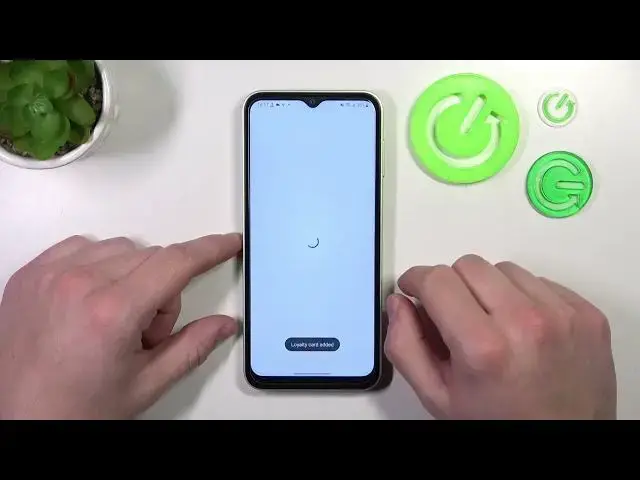

How to Add Passes to Google Wallet on Samsung Galaxy M14 – How to Use Google Wallet
Mar 20, 2024

Check More info about Samsung Galaxy M14:
https://www.hardreset.info/devices/samsung/samsung-galaxy-m14-5g/tutorials/
Hi there! Adding passes to Google Wallet on your Samsung Galaxy M14 is a straightforward process. First, open the Google Pay app on your device and tap on "Passes". From there, you can either scan a physical pass or select "Add" to manually enter the pass details. You can add passes such as loyalty cards, gift cards, boarding passes, and more. Once you have added your pass, it will be available for easy access whenever you need it. With Google Wallet, you can keep all your important passes organized in one convenient location on your Samsung Galaxy M14. For more useful tutorials on how to get the most out of your Samsung Galaxy M14, check out our HardReset.info YT channel.
How to Add Card to Google Wallet on Samsung Galaxy M14?
How to Add Passes to Google Wallet Samsung Galaxy M14?
How to Remove Card from Google Wallet on Samsung Galaxy M14?
#GoogleWallet #GooglePay #SamsungGalaxyM14
Follow us on Instagram ► https://www.instagram.com/hardreset.info
Like us on Facebook ► https://www.facebook.com/hardresetinfo/
Tweet us on Twitter ► https://twitter.com/HardResetI
Support us on TikTok ► https://www.tiktok.com/@hardreset.info
Use Reset Guides for many popular Apps ► https://www.hardreset.info/apps/apps/
Show More Show Less