0:00
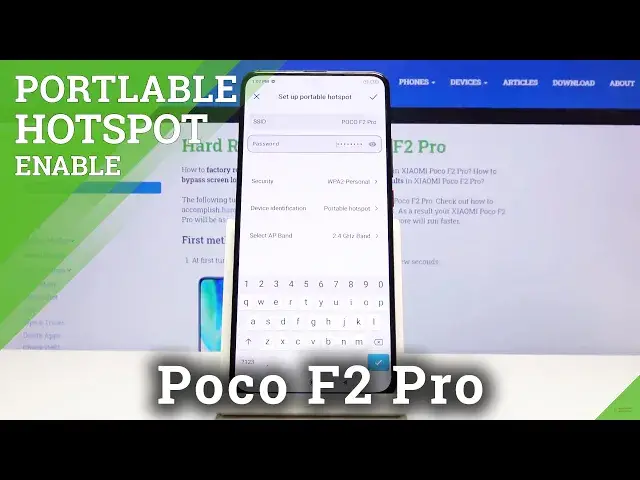
Welcome, following me is a Poco F2 Pro and today I'll show you how to set up the portable hotspot
0:12
So, to get started, pull down the notification panel and find the hotspot toggle, which for
0:19
me is on the second page right over here. The position of it may vary a bit, so keep that in mind
0:24
But once you find it, you want to hold this and this will take you to the settings where you can number one, change the password of it, probably the most important part
0:31
So let's go to set up portable hotspot. Right here, have the password
0:35
Now you can tap on it and try to remember this completely random mess right here, but
0:41
you can just remove this and set a new one. As you can see, it needs to have minimum of eight characters
0:49
So set it up. Now the password that you set is completely up to you
0:54
You can choose it, whatever you want. I'm just setting up some kind of easy one to remember for this purpose
1:05
Then the SSID is just a name of the Wi-Fi that will show up in the list
1:09
So you can change it to something else, keep it as it is. It doesn't really change much
1:14
Then you have the select AP band. And now we have a choice between two
1:18
You cannot select both of them, unfortunately. If you're going to be connecting to this network with some relatively new device, then
1:27
I'll go to five gigahertz. But if it's going to be an older device, it might not always see the five gigahertz
1:34
And if that is the case, it will need to drop it down to 2.4 right over here
1:39
So just keep that in mind that if you turn the Wi-Fi on or hotspot on, and you don't
1:45
see your network, which in this case would be the Poco F2 Pro name of the network, then
1:51
you might want to go back here and just drop that to 2.4, and then it should be golden
1:55
It should just work. And that's about it. So from here, just tap on the checkmark over in the corner
2:03
And once this is all set, you can either tap right here to turn it on, or also you can
2:09
turn it on from here, where we had the toggle. And that's also where you would turn it off once you're done with it
2:17
So that is how you would set it up and use the hotspot. And if you found this video helpful, don't forget to hit like, subscribe, and thanks