0:00
Hi, in front of me I have Acer Iconia One 10-inch model B3-A40 and I'm gonna show you
0:13
how to enable the Do Not Disturb mode on this device. First, we need to open the quick panel
0:21
To do it, simply swipe downwards from the top of the screen, like this
0:28
Then swipe again down, like that, to open the quick panel. And here we have Do Not Disturb mode icon
0:35
To enable the mode, you can tap on it. This menu will appear and you can customize the Do Not Disturb mode settings right here
0:44
You can select the profile, for example Total Silence, Alarms Only and Priority Only
0:53
If you select Total Silence, this will block all sounds and vibrations, including alarms
0:59
from music videos and games. If you select Alarms Only, only the alarms will be hearable, they won't be blocked
1:08
And if you select Priority Only, you won't be able to hear the vibrations, sounds, except
1:17
from alarms, reminders, events and colors you specify. Okay. Now, after you select the profile, you can also select for how long the Do Not Disturb
1:29
mode will be turned on. And you have options like until you turn it off
1:32
Basically, it's gonna be turned on until you turn it off. Or you have option for one hour and here you can basically add and subtract the time
1:42
You can set the time to your liking. Oh, my bad, let's open it again
1:52
And once you're done, you can tap on Done or simply tap on Screen to go back. Okay
2:00
Now, we can tap on More Settings right here to open the Do Not Disturb mode settings
2:09
Like this. And here we have a few options. Priority Only Allows, Automatic Rules and Block Visual Disturbances
2:16
If you tap on Priority Only Allows, here you can customize basically the priority only profile
2:24
And you can turn on and off some things like reminders, events
2:29
If you turn them off, you won't hear the sounds and notifications about them
2:33
If they're turned on, you will hear the sounds and notifications. Below Events, we have Messages and this option allows you to basically customize from whom
2:42
you're gonna get the sound notification when somebody is sending you a message
2:51
Then you can select from anyone, from contacts only, from start contacts only and from none
2:56
If you select from contacts only, you will get the sound notification when only people
2:59
from your contacts list are writing to you. If you select from start contacts only, you will get notification only when the start
3:07
contacts, favorite contacts are writing to you. And from none, of course, all the notifications will be blocked and from anyone, every notification
3:18
will be allowed. From messages. Below, we have Calls. This is the same option as for messages, or rather as messages, but for calls basically
3:26
you can select from whom you're gonna get the notifications and sounds about the calls
3:33
And below, we have Repeat Callers option and what this option does is basically if the
3:37
same person calls you more than once within a 15 minute period, the sound notification
3:45
and vibration will go through when the Do Not Disturb mode is enabled
3:50
And you can enable this option or disable it by tapping the switch like this
3:55
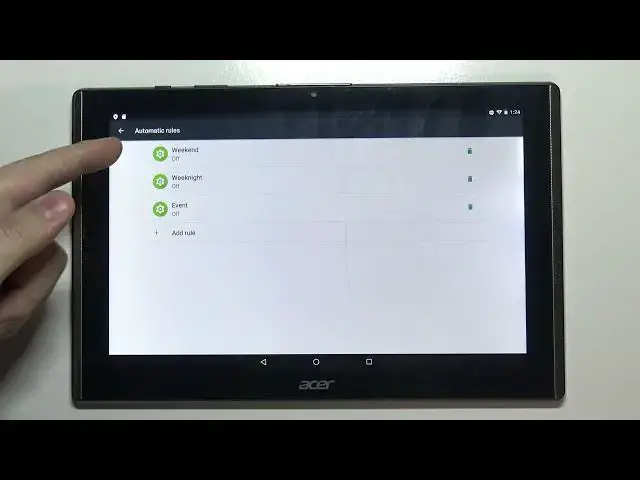
OK, let's go back to Do Not Disturb. Here we have also Automatic Rules
3:59
Tap on it and here we can basically set up a schedule for our Do Not Disturb mode
4:04
We have few pre-existing ones like Weekend, Weeknight and Event. We can tap on them to edit them basically
4:12
Here we can tap on Rule Name to change the name of the schedule
4:20
Then we can tap on Days and select the days on which the schedule is gonna be active
4:25
And as you can see, it has selected Friday, Saturday, but I'm gonna also select Sunday
4:30
like this. And I'm gonna tap on Start Time. And here we can basically set the hour on which the Do Not Disturb mode will be turning on
4:41
To do it, simply press and hold on the screen. Oh, you can simply tap on it too
4:45
But you can tap on the hour you want to select. You can also press and hold on the screen circle and drag it around like this
4:53
Depends what you like. Then release it and do the same for minutes
4:58
You can tap or drag around like that. And right here you can also change AM and PM
5:09
For some reason I can't... Oh, yeah, I just can't hit it. OK
5:14
AM and PM. And once you're done, simply tap OK. Below we have End Time
5:18
This is the same option, but this is the time when the Do Not Disturb mode will be turning off
5:24
And you can set it like this, like before. Like that. And tap OK
5:35
Below we have Do Not Disturb. Basically here we can select the profile
5:40
We have Priority Only, Alarms Only and Total Silence. And at the bottom we have an option called Alarm Can Override End Time
5:47
And basically when the alarm rings, it can turn off the schedule turn off itself
5:56
And you can enable the option or disable it. Here you can also enable the schedule by tapping on the switch, like that
6:04
And you can remove it by tapping on the bin and tapping Delete, like this
6:10
You can also remove them by tapping on the bin right here and tapping Delete. OK
6:15
And we can also add our own rule by tapping on Add Rule
6:19
And here we can select the type. I'm going to select Time Rule
6:23
Enter the name. And tap OK. And again we can edit the settings. Name
6:40
Days. Start time. End time
6:54
Profile. And we can also enable or disable this option. Once you're done, simply go back
7:05
As you can see, this one is enabled. Let's disable it by basically to disable the schedule you need to tap on it to select it
7:13
And here you can enable it or disable it. Let's disable it like that. OK
7:19
Let's go back. And last option in Do Not Disturb mode is Block Visual Disturbances
7:24
And you can here tap on it and you have two options
7:28
Block when screen is on and block when screen is off. Basically, if the Do Not Disturb mode is enabled, you can enable these options to block the
7:39
notifications to pop up on your screen. This option blocks them when the screen is on and this option blocks them when the screen is off
7:49
And you can enable them by tapping on switches or disable them. OK
7:53
Let's go back. And disable the Do Not Disturb mode like this by tapping on the icon again in the quick panel
8:03
And basically that's how you enable the Do Not Disturb mode on this device
8:08
Thank you for watching. If you found this video helpful, please consider subscribing to our channel and leaving a like on the video