0:00
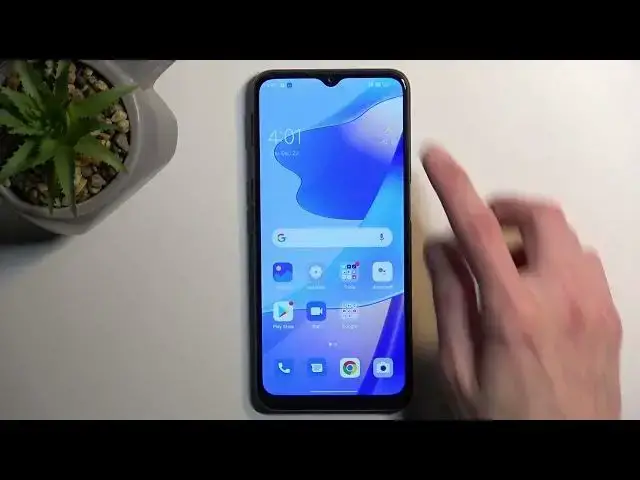
Welcome and follow me as a Oppo A16s and today I'll show you how you can enable your power saving mode
0:10
So to get started pull down your notifications, extend the list and locate the power saving mode. I believe it is turned off by default so we will need to press
0:21
right over here and you see the two different ones. So we have the super power saving mode
0:29
and just the power saving mode. I'll add both of them just press on the plus. There we go
0:36
So I added both of them so I can show you how each one of them works because they are
0:44
different. So I'll start off with the normal power saving mode so whenever you want to enable it just
0:49
simply tap on it boom and that's it. So there's a bunch of things happening in the background like
0:56
most likely I'm just guessing I'll clarify this because the phone as you've seen didn't give me
1:01
any indication or information what it does. So I can assume that it most likely will turn off
1:07
Wi-Fi and mobile data when the device is not being used meaning in this kind of state. It would
1:13
disconnect after a couple minutes to preserve battery. Now because of this you won't be
1:17
receiving notifications from applications that would require a connection. Those apps would be
1:22
for instance Facebook, Messenger, WhatsApp and so on. Now going back I'm gonna disable this mode and now I'm gonna show you the super power saving mode
1:36
which I don't even need to speak it will just show you on its own like how drastic it is
1:43
There we go. Now location access the phone turns off location access in this kind of mode
1:49
So we can turn it on if you have a need for it but I'm just gonna select cancel and as you can
1:56
see this mode just straight up prioritizes only battery life giving you an information on how
2:00
long the battery will last. So right now we are roughly at 20 hours of battery life with a 40
2:05
battery and it gives us just three applications right over here. Messages, phone and clock which
2:13
we do have a clock right here but obviously you have options like alarms and other stuff
2:17
You can also add more application just three more so you could add browser
2:26
So there we go. Still works pretty normally but in general like you don't have a wallpaper you also have a limited
2:36
access to toggles right here and like I mentioned this is straight up just prioritizing only battery
2:42
life and then nothing else. Now to leave this mode all you need to do is press right over here
2:50
gives you this pop-up right here so select the red text exit super power saving mode
2:56
and as you can see it will go back to normal mode. So if you found this video helpful don't forget to hit like, subscribe and thanks for watching