0:00
Welcome to Hard Wizard InfoChannel viewers
0:02
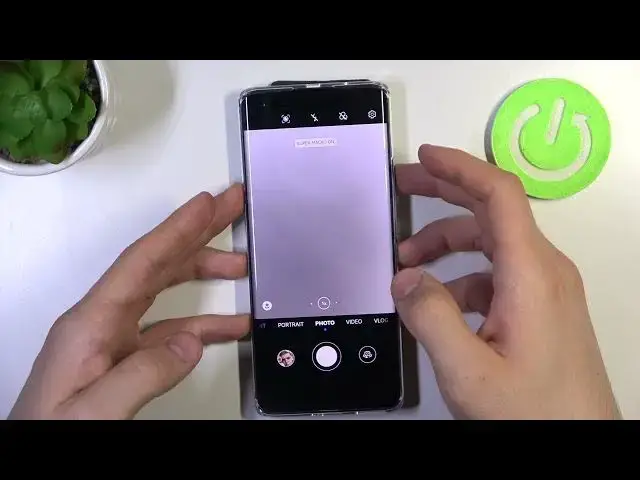
In front of me, Huawei Novi 11 Pro device and now I can show you camera top tricks for this smartphone
0:15
So firstly, let's open the camera application. So let's start with the first trick of our device
0:23
It's a night mode so everybody knows that Huawei has really awesome
0:30
night mode so we can take really great pictures in the dark darkness so in the dark
0:40
part of the day here we have the portrait mode in the portrait mode we can choose
0:47
the presets for example we can use classic poor mono moody natural bluish
0:55
also fair and pink colors for example. Here we have effects. We can use circles
1:08
we can use circles, effects, slow shutter, hards, photo both and for example stage lighting
1:22
So we can use these future stars. features too of course and we have the beauty future so beauty future is improving
1:32
your skin and photo and you don't need to to use Photoshop or other photo editing
1:38
applications to to improve your photo cool so here in the normal photo mode we have
1:47
the object the object I don't know how her name is so maybe it's object mode or object detecting mode. Here we can use identify mode called
2:03
scanner. So for example if you want to identify something, for example I want to identify
2:08
the other railway device So let try to identify And as you can see it didn find that Huawei device is because it using the Bing search to identify futures and products
2:38
Of course, if it will use Google it will be better. But now when it works with Bing, it works not too good
2:46
Here we can scan QR codes. here if you want to shop something for example if you want to shop the flower
2:56
artificial flower so just take a photo of the artificial flower you want to shop
3:01
wait a while and I have no results but if you will use Google to search so of
3:11
course it will work better translate so using translate we can translate the text
3:20
for example if you have something you want to translate and you don't want to
3:28
for example when I have that or go here okay get started for example here
3:36
I have I use a Brazilian language and for example if you want to translate something
3:50
to place the photo to the part of the text you want to translate and it will translate it
3:58
automatically. Cool. And great, go back what we have here. Here, as you can see we have
4:15
we have the presets too so we can use presets not. for portraits only but for normal photos too
4:24
So let's reboot the photos application and code. And here, as you can see we have the AI button
4:32
So click on it to enable AI camera future. Using this future, it will color your image
4:39
in the way that you don't need to change colors and to edit this photo
4:46
before you will post it to Instagram for example because using AI mode your photos will look great for the start So open the video mode in video mode we can
5:01
use presets 2 here we have classics and down pure mono moody and other and here we
5:12
made lenzheny most one and two mode it's really really really perfect mode if you want to
5:17
record video of these portraits. So I suggest to try this mode
5:24
And here we have vlogs. So in vlogs we can use really, really different and and
5:36
constantly strange modes. So I don't know why we need it, but we have it. So for example, here we have mode
5:46
rear and rear. Okay, and here we have zoomed and not zoomed image on the one screen
5:58
So, if you need it, you have it. But I don't know why we need it
6:05
Okay, so here we have front and front. Oh my God, so here we have..
6:16
Here we have two front videos recording in the same time. So if you know how to use it, please write in comments because I don't know why we need this future
6:32
Here we have front and front two. It looks really strange. Here we have front with zoom and here we have front image without
6:44
Okay, maybe cool and of course in block mode we can set up music
6:49
we can step the picture in picture mode and we can set up other settings too so cool
6:57
and in the more mode we have several great futures too so for example sure you have
7:06
moving picture moving picture it's like a it's like a live photo live photo
7:14
on the iPhone iPhones on iOS devices but it works it works a bit later so let try
7:31
let's try to take a movie photo and wait a while open while open this move photo
7:44
and click on the moon button. As you can see, it's like a part video
7:50
or like a GIF file, but it's just a photo and you can share it like just a normal JPEG file
8:01
Cool. And it's great. So, great file. And here we have story creator
8:11
Story creator mode. We can record blogs and other different videos
8:21
We have Panorama. Here we have stickers, so we can create stickers with our places like in Samsung devices for example
8:32
And here we have really great mode. It's documents mode. We have documents mode. We can create photos of our documents and save it
8:44
in PDF file. Super macro, everywhere it was a super micro device but here we have high
8:52
rise future, using the high rise future we can enable 50m pixels mode to use all
9:00
performance of our 50 megapixels camera. Of course here we can step presets too but
9:09
in this mode we can use all our 50 megapixels and of course we can use all our 50 megapixels and of
9:14
we can use the 15 megapixels with AI and using 50 megapixels AI
9:21
pictures will be and our photos will be really better so let's try it
9:29
so that's it thanks for watching like this video subscribe to the our channel
9:33
and bye see you Thank you