0:00
Welcome today, I am with Huawei Nova 9 S.E
0:10
And I want to show a couple camera tricks. So first, we are going to start from the standard modes
0:15
For example, let's start from the photo mode. When you are here, we can use our shutter to take photo
0:21
But when you click and hold, you are going to take series of the photos
0:26
When you release the shutter and open the gallery, you will find all of these pictures that you take
0:33
So when you tap on this icon, you will show all these photos that you take in the series
0:38
of the photo. If you want to save any of this photo, you can just select right here in the right upper
0:45
corner in the right bottom corner of the photo and then click on to save in the right upper
0:52
corner on the phone. And here we got a few options. For example, we can save only these two selected photos
0:58
We can save all of them or we can just go back. I'm going to save only these two photos and that's how they looks
1:06
Another method we can take photos by using this volume bottoms. So when you click once, that works the same like the shutter and when you click and hold, you
1:19
will also take series of the photos When you tap on the screen in the photo mode you can adjust the brightness level by moving the sun icon so we can increase or decrease brightness level Oh sorry guys I just switched the modes
1:34
Let's try a more time. As you can see, that's how we can switch the brightness level
1:40
To adjust the brightness level automatically, just tap on the screen once
1:44
And this option works also in the portrait mode, video mode and in the most modes that you can find in this camera application
1:53
If you want to focus on the zoom, so we can go for the ultra wide lens, for the normal, for the 2x or 10x
2:03
But you can also drag like that, and after that you will get this slider
2:07
With this slider, you can definitely zoom much much smoother
2:17
So we can also click and hold and we will show us on the screen
2:22
but when you switch to the ultra-right lens it will disappear as you can see. So to open it you can drag or just click and hold, and that's how we can zoom in and zoom out
2:36
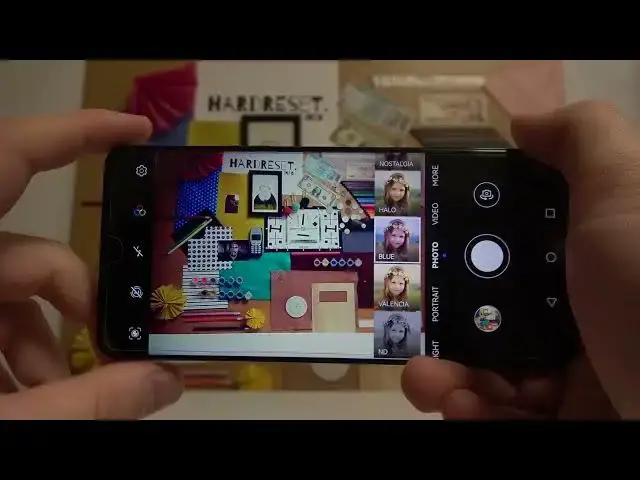
When you click on this icon, you can change color and the temperature by using these default presets
2:48
If you want to take photo, for example, with this one, just select and you just select and you just select. and click on the shutter If you want to turn off the filters click here one more time and go for the normal Okay right now let go for the settings
3:05
In this place, we can find a few options. For example, we can take photos by using voice control
3:12
So we can say the keyword, cheese or juice speak loudly. I'm going to choose our keyword
3:19
Let's try if it works. Cheese. Cheese. Cheese
3:32
Let's try one more time. Cheese. Okay, I don't know, maybe it's my misspal, but it looks like it's not working with this cheese
3:46
So let's try to switch and use the loudly. Take photo. take photo
3:55
take photo take photo take photo
4:06
okay as you can see sometimes it's also not working so maybe it's not the best feature to use
4:17
let's scroll down and in this place we can change the video resolution
4:21
As you can see it on the 16x9 and it recommended and the highest video resolution that you can find this phone We can enable the assistive grid lines They help us to take better composition on the photos So for example if you want to put any object in the middle like for example this phone
4:39
on the keyboard of this phone, with these lines, we are able to make it definitely easier
4:48
Just like that. And let's enter for this settings one more time
4:54
So we can also use the floating shutter button. Take a look when you enable this option and then go for the photo mode
5:01
You will find this floating button. So it works like this original
5:05
Right here. It's useful for example when you hold your phone like that and you are not able to reach the bottom shutter
5:12
So we can just click right here. We can also enter for the more modes where we can find stickers
5:22
So when we enable the stickers, we can select for example this one, apply on the left upper corner and then just take normal photo
5:34
On the preview you'll get this Monday sticker in the corner so that's how we can add them
5:43
And I think that's all from the Huawei Nova 9 . If you find this video helpful, remember to live a like, comment and subscribe