0:00
Welcome, in front of me I have Oppo A15 from European distribution and today I will show
0:12
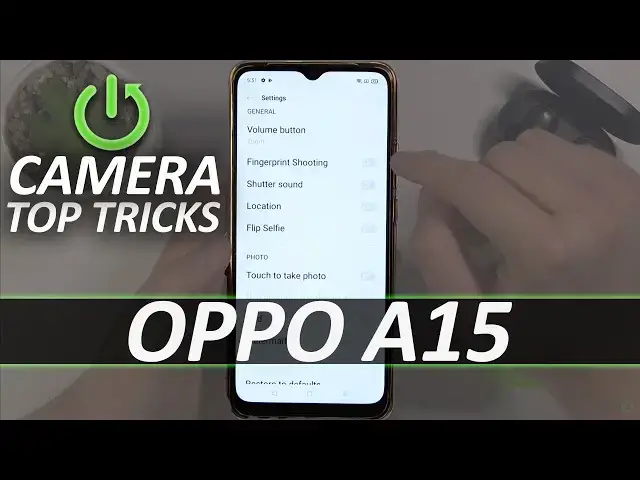
you a couple of camera tricks that you can use on this smartphone. So let's open the camera and at the first we are going to start from the settings, from
0:19
the best features that we can find in the settings. So let's tap on the right upper corner to enter the settings and as you can see at the
0:27
first we can adjust the volume button functions, we can go for the volume shutter or zoom
0:33
I can recommend you to go for this one for the zoom and take a look
0:37
I'm going to show you how it looks right now. When we press the volume up or volume down button we can quickly zoom in or zoom out
0:46
just like that, as you can see
0:58
So very useful and much easier than pinching screen like that. Let's go back for the settings and we can also activate fingerprint shutting
1:08
So as you can see in this smartphone we can find fingerprint on the back and when you
1:12
hold your smartphone for example like that and you cannot reach shutter you can press
1:16
the fingerprint, I mean even put finger on the fingerprint sensor and as you can see
1:23
the photo will be taken. I'm only pressing the fingerprint sensor, take a look
1:29
Here this place the photo is taken. In the settings you can also find location information about our photos so when you click
1:41
on the switcher and activate location be sure also that location is enabled
1:46
When you take a photo right now and go for the details of that photo we will get the
1:58
exact location of this photo. Ok it's probably some kind of the back, let's go back and let's take another photo
2:20
As you can see right now we got the exact location of the photo where it was taken
2:31
You can also activate grid lines to make better composition of the photos
2:35
As you can see right now grid lines appears on the screen and definitely it's much easier
2:40
to take good composition of this photo. Just like that, let's take it and take a look right now
2:54
It looks really nice. Did I miss something? Let's check. That's all
3:01
Oh we can also mark our photos when you enable the watermark
3:06
We can also make the custom name so you can type here hard reset and take a look when
3:13
I take a photo with this option and the left bottom corner it will mark that photo was
3:21
taken on the Oppo A15 by hard reset. Ok now let's move for the mode that we have in the smartphone
3:28
So as you can see we got basic modes like video, photo, portrait and more
3:34
Let's start from the photo mode. As you can see we can quickly change the temperature and color of our photos when you click right here
3:45
So you don't have to even download external applications from the Google Play Store, you can quickly apply them from your stock camera
3:54
We can also tap right here and activate timer. So as you can see right now we set it up on the 3 seconds and when we take a photo it
4:03
will be taken after a few seconds. The photo was taken. We got here also the beauty mode
4:20
Ok but to be honest I don't see any difference. When we are in the video mode we can also apply the filters to our photo, to our video
4:30
as you can see. And when we go for the more modes we can find here the Google Lens
4:36
There's very useful feature. Let's open it, click to open the camera and if you want to find something that's around
4:42
you, for example I'm going to check what it is. This box from Samsung
4:54
Let's see what we get here. As you can see there is the box from original Samsung Y Red headphones
5:11
Let's go back and basically that's all. That's all that all tricks that you can use when you have this smartphone
5:16
If you found this video helpful remember to leave a like, comment and subscribe to our channel