0:00
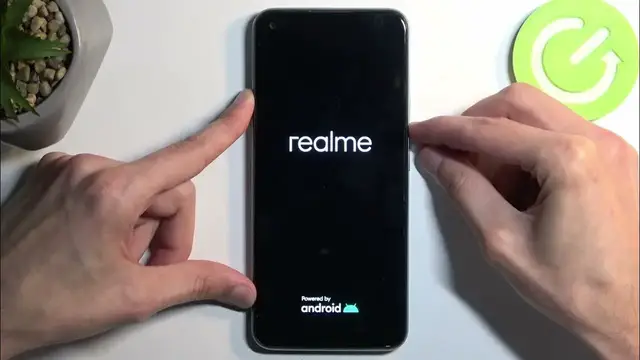
Welcome. In front of me is a realme C17 and today I'll show you how you can hard reset this device
0:07
through recovery mode. That being said, doing so through recovery mode will allow you to get rid of a screen lock
0:15
so if you have one set that you don't know, for instance I do have a set pattern
0:22
so I'll progress from here as though I don't know it to kind of emulate this kind of effect
0:27
So anyway, this will obviously get rid of it fully, but there is a little bit of a caveat
0:35
so if you have also a Google account signed in and you have a screen lock, this will then
0:40
lock the device, meaning when you're going through the setup process of it, you will be forced to
0:44
verify one of these two, meaning either the screen lock or the Google account, and assuming
0:49
you don't know either of those, typically you would be basically locked out of it and you
0:54
wouldn't be able to finish up the setup, keeping you there till you verify it. But luckily I do
1:01
have a bypass guide for that that will be coming right after this video, so if you fall under this
1:06
small niche of people, that set guide will basically help you, number one, bypass this
1:12
and then second, remove it. So let's get started. We're gonna first hold our power button and we're
1:19
gonna select our... we're gonna swipe down to power it off. As you can see, we don't need to verify
1:26
anything, no screen lock, no nothing. The device will just simply turn off. Once it does so, you
1:30
want to hold your power button and volume down at the same time. Let go of the power button when
1:38
you see the Realme logo. Here we're gonna select our desired language, so I'm gonna tap on English
1:53
and then you want to select wipe data, and then select format data. This will generate a random
2:02
code right here, so simply type it in. For me it's 9589. If I would go back here, it will change
2:09
so just to demonstrate this, as you can see now it's different, 5241
2:18
There we go. Once you type it in, select format to confirm it. This will start wiping the data from the device, and at least this step takes only a couple seconds
2:28
and as you can see it's almost finished, at which point it will give us a pop-up. Any moment now
2:39
I guess we're just gonna wait. There we go. Wipe successful. Click on OK, and it automatically reboots the device. Now it will take the device a little bit longer to boot
2:47
back up, because it is still continuing the reset of it in the background. That is completely normal
2:52
Once it's finished, we will then be presented with Android setup screen. So I'll be back once
2:57
that is visible for me. So
3:48
and as you can see, the process is now finished, and you can set up your device however you like
3:51
So if you found this video helpful, don't forget to hit like, subscribe, and thanks for watching