0:00
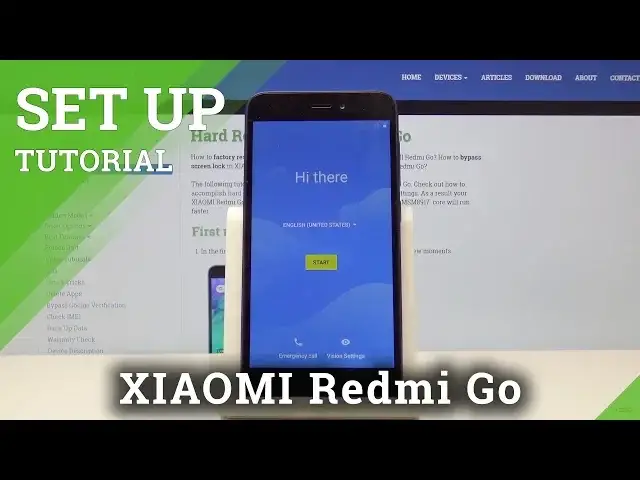
In front of me I have Xiaomi Redmi Go and I'm gonna show you how to perform the initial setup on this device
0:12
First, let's tap here to open the list of languages. And now let's scroll up and down and select the language we like
0:25
In our case we're gonna select English. Now we need to select the region, for example United States
0:40
Now down here we can tap on Emergency Call to call the emergency numbers
0:47
And we can also tap on Vision Settings to get access to some accessibility features like magnification, font size and display size
1:03
Now let's go back and tap Start to continue. Here we can insert the SIM card into our phone, but we're gonna skip it by tapping Skip
1:21
Now we can connect to Wi-Fi, so let's select one. Here we can opt to copy data from another device or just set this phone as new. We're gonna select Setup as new
1:44
Now we can log in to a Google account, so let's type in the name
1:52
And then tap Next to continue. Now we need to type in the password, so give me a few seconds
2:09
And then tap Next to continue. Here let's select I Agree
2:33
Now we can add some screen lock method, but we're just gonna skip it by tapping Not Now
2:43
And tap Skip Anyway. Here we can set up our Google Assistant, but we're just gonna tap No Thanks to skip it
2:58
Now we can turn on and off some of the Google services
3:02
And once we're done, we just scroll all the way down and then tap Accept to continue
3:13
Here we can turn on some of the Mi services by ticking these sliders on and off and then tap Next to continue
3:29
And now we can add another email account or just tap No Thanks to continue
3:45
Here we can allow some storage permissions by tapping this Allow button or just tap Skip if you want, but we're gonna allow it
3:55
And then tap Allow. And that should be all. If you found this video helpful, remember to subscribe to our channel and leave a like on the video