0:00
Hi, welcome to our channel
0:09
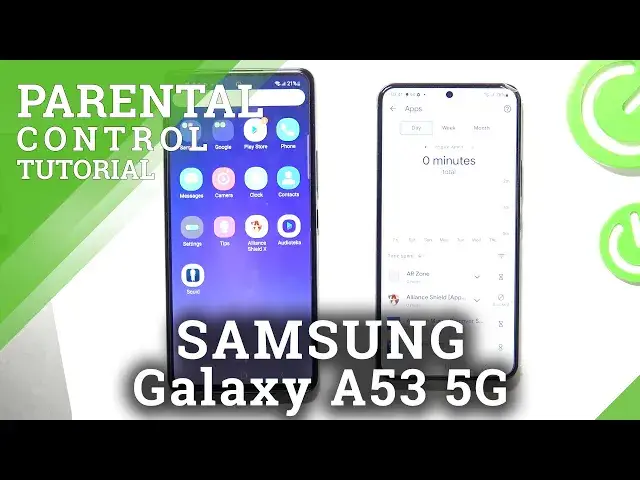
In this video I'll show you how to install a Family Link Protection, Family Link Parental
0:16
Controls on your child's Samsung Galaxy A53. So first you need to log out of all Google accounts on the child's phone
0:27
To do this, go to Settings app, scroll down and choose Accounts & Backup
0:35
And choose Manage Accounts, choose Account to delete and choose Remove Account, Remove Account. Cool
0:47
Now, choose Manage Accounts again and add an account. Click Google and now you need to add a child's Google account on this device
1:00
But if the child knows the password from his own account, he will be able to bypass the
1:05
blocking of Google Family Link. And therefore either you need to create an account for the child with a password that
1:12
only you will know, or ask the child to change the password to one that he will not know
1:21
So enter child's email and enter child's password
1:34
Click Next, I agree, scroll down and choose Accept. Cool
1:46
Now go back and choose Google on the settings menu. Scroll down, choose Parental Controls, Get Started, Child or Teenager, Next
2:02
Choose Child's account. And now you need to log in into your Google account, into parent's Google account
2:11
Enter password. Click Next
2:21
Scroll down, scroll down, confirm child's password. Click Agree. Hello
2:32
Click Next. Scroll down. Next. Scroll down, click Next again, skip, skip and go back to the home screen. Cool
2:52
Now on the parent's phone, on your device, install Family Link application
3:01
Find it on the Play Store, click Install, wait a while and click Open
3:13
Go down, go down, go down, choose Get Started. Choose your email, choose your account and it's cool
3:25
Now you can see here Google account, we just reset it, so choose it
3:34
And cool. Now as you can see we have fully controlled the child's phone, we can block his phone
3:42
we can block separate applications to do this, to do it. For example, we can lock now A53 device, so device will be locked until 6 AM
4:06
We can unlock child's device and we can lock separate applications to do this
4:12
Choose View all apps and choose application to lock. For example, I want to lock for kid AlienShield X application
4:22
To do this, click on the send watch and choose Block
4:32
As you can see, AlienShield X was successfully blocked on the child's phone
4:39
And that's all. Thank you for watching, like this video, subscribe to the our channel and bye, see you