0:00
Hello, in Infronomia I have realme C3 and I'm gonna show you how to take a screenshot
0:12
on this device. First we need to go to the screen we want to capture, for example let's open the Google
0:18
Chrome browser and now to take a screenshot we need to press the power button and volume
0:23
down button together. Like this, you will see this little menu right here, up here
0:30
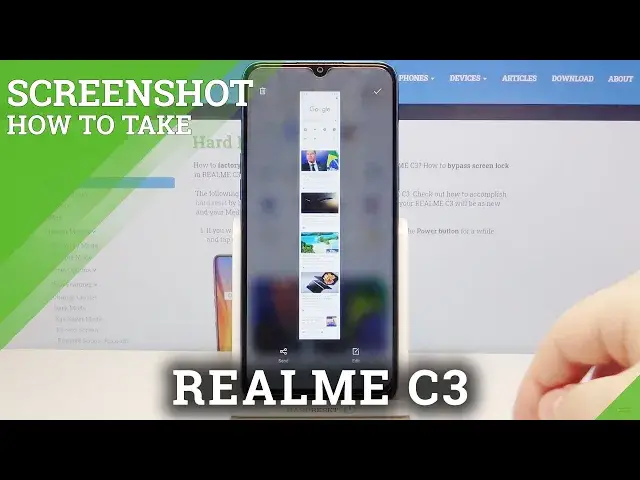
You have a preview of the screenshot you took and you have two options, at the top you have
0:34
share and at the bottom you have scroll screen. Basically you can press and hold on the preview of your screenshot and then drag it to the
0:43
top or bottom of the screen. If you drag it to the top you will enter the sharing mode and here you can select the app
0:51
you want to use to share your screenshot, for example. If you're somebody you can share it via messages, Gmail, Bluetooth and stuff like that
1:00
If you drag it to the bottom you will enter the scroll screenshot mode
1:06
Basically it's gonna take a screenshot or rather it's gonna start scrolling down through
1:10
the screen and starting taking a screenshot of the whole Google page instead of only the
1:18
area that fits on the screen. So if you have something like Google page settings or something that doesn't fit on
1:24
the screen at once you can take a scroll screenshot of it to take the whole picture or rather picture
1:30
of the whole content. And you can wait until it reaches the bottom of the screen
1:38
It's gonna stop then or you can tap on the down button like I did before to stop it whenever
1:43
you want. You can also take a screenshot by swiping down with three fingers on the screen like this
1:56
You can also take the partial screenshot by pressing and holding with three fingers on
2:01
the screen. You will enter this mode, you can see, and you can swipe up and down to select the area
2:09
of the screen you want to take a screenshot of, then release it and you will see this option
2:15
You can also tap the checkmark to confirm or edit your picture
2:20
Basically you can select the bigger area, make it larger, smaller. You can do different stuff like doodle, edit
2:27
You can also select the type of partial selection. You have rectangle or square, ellipse, I think, and free area
2:43
You can draw on the screen the area you can take the screenshot of like this
2:49
And once you're done simply tap the checkmark to confirm. And that's how you take a screenshot on this device
2:56
Thank you for watching. If you found this video helpful, please consider subscribing to our channel and leaving a like