0:00
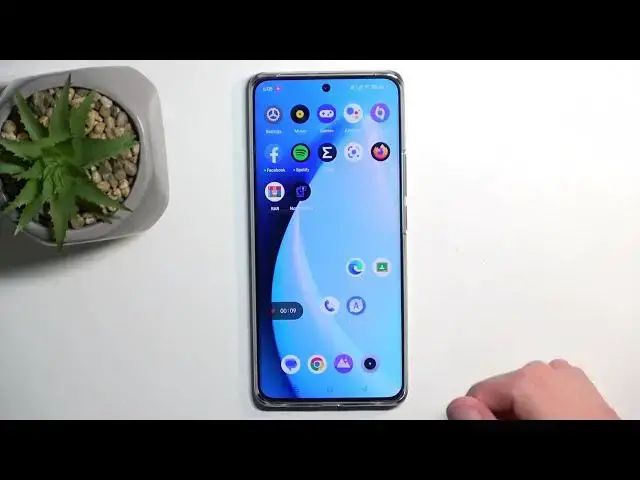
Welcome. In front of me is a realme 10 Pro Plus and today I will show you how you can record a screen on this device
0:11
So to get started, let's pull down our notifications straight from the top. This will show us our toggles and when you extend them, you can hopefully find a screen recording toggle
0:20
Now if it's not visible on the first page, you can swipe to the side and hopefully you can see it on the second one
0:24
which is where the toggle is for me. So as you can see, it's right over here
0:30
Now once you see this toggle, you can either tap on it to immediately start recording or you can hold it and it will take you to the settings
0:36
or you can just change some of the general settings that are chosen by default for you
0:41
What I would recommend changing is most certainly things like the definition, which is set to medium I believe by default
0:50
So I would recommend setting it to high. This will give you a 1080p resolution with 16 megabits per second
0:56
giving a pretty nice and clear image. Another thing that I can change is the refresh rate and change it to 30
1:05
Apparently we don't have a 60 hertz refresh rate here as a choice, even though this display I believe runs at 120
1:12
A little bit of an oof right here, but it is what it is
1:18
So anyway, once you have changed the settings here to fit your needs, you can close this and now find the toggle once more
1:25
and simply tap on it. Now this gives us this overlay with recording sound, microphone, closing and obviously just start recording
1:35
And there we go. So whatever you'll do right now obviously will be recorded by the phone
1:43
And once you're done with it, you can interact with this and select the check mark
1:49
And this will automatically save our screen recording to our gallery application
1:55
Now one thing to keep in mind is when you start recording, the entire device's refresh rate gets locked to 30 frames for some reason
2:04
It's not only that it's recording at 30 frames, it's also running the entire screen at that refresh rate
2:11
And anyway, let's get into the photos. You can then navigate to..
2:24
You can then navigate to library and in here, screenshots. And you can see it right here
2:32
Now it's not a screenshot, it's a screen recording, but the phone basically bunches those two different things together in a screenshot folder or album
2:43
Now when you press on it, it will start recording it. So there we go, as you can see that it's screen recording
2:50
So there we go. Now if you found this video helpful, don't forget to hit like, subscribe and thanks for watching