0:00
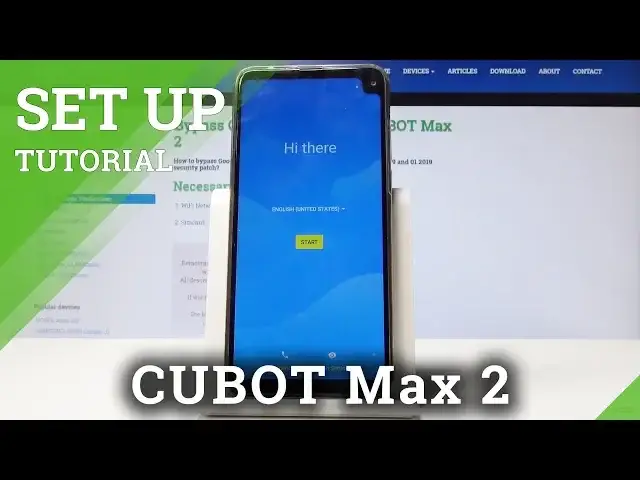
Here I have Coupod Max 2 and let me show you how to activate this device, let me show you
0:11
how to go through the initializing setup process on the following device
0:15
As you can see let me start from the welcome panel, here I can change some vision settings
0:20
I can also make some emergency calls if I need something or I can choose my language
0:25
So this is the most important part, so let's choose your desired language, in my case let
0:29
me select English, for example from United States. Now I can proceed and tap start
0:37
Here you may connect your device to a WiFi, it's not necessary but I usually recommend
0:42
this step because the internet connection enables a few interesting options. So let me choose my WiFi, let's wait a few seconds, the device is connected and now the
0:52
phone is checking for updates. So this may take a few minutes, you have to be patient and wait until the process would
0:57
be completed. Right now you can copy some apps and data, so you can transfer your apps, photos, contacts
1:10
google accounts and more, or you can choose don't copy as well
1:22
Here you can sign in into the google account, it's also not necessary but google account
1:27
enables a few things. So let me do it, let me sign in in my google account
1:33
So you can do it in two ways, you can create a new account or you can use the existing
1:36
google account, so let me use the existing one. Let's enter the email, tap next
1:46
Now it's time to enter the password, so let me do it
1:52
Alright, choose next. Here let me tap agree to terms of service and privacy policy, tap I agree
2:07
Tap next to date and time. Here let me leave google services enabled, so let me leave enabled backup to google drive
2:17
choose location, allow scanning, send user and diagnostic data and other stuff, tap accept
2:25
Let me skip unlocking with fingerprint, choose not now to the protection, you can do it later
2:31
in settings as well. Tap continue. Let me choose no thanks to google assistant
2:42
Let me skip the card settings, choose no thanks to the additional settings and the
2:50
phone is adding some finishing touches and as you can see the home screen pops up, so
2:54
it means that the setup process is completed. Thank you for watching, please subscribe our channel, leave thumbs up under the video