0:00
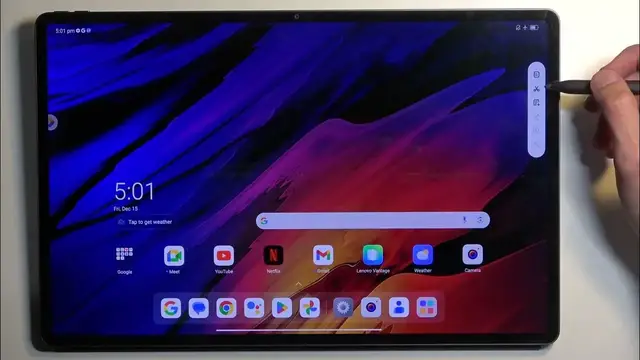
Welcome! In front of me is a Lenovo Tab Xtreme and today I'll show you how we can capture a screenshot on this device
0:10
So to get started you'll want to open up content that you wish to capture. I'll be using just a home screen as an example for this so it's already open and visible
0:18
Just make sure that whatever you want to capture in particular is actually visible on your display right now
0:23
when you're going to be pressing the power button and volume down at the same time to capture a screenshot
0:30
You will see this animation and your screenshot will show up at the bottom with delete option, scroll and I believe that was a share option
0:38
As you can see it automatically disappears after a moment. Now when it came down to the scroll option it is accessible
0:46
when you have content that can be scrolled down for instance like your browser. Home screen didn't have anything that it can be scrolled down on so automatically it was greyed out
0:55
And let's see if we have... we do I believe have an option to capture a screenshot right here as well
1:00
Not sure if this is it. This is kind of it. So as you can see it has a scissors image for it for some reason
1:08
But the way this works is this allows you to capture a specific area of your screenshot
1:13
So not an entire screenshot of your entire screen, but for instance maybe you just want to capture something like a couple of your apps like this
1:20
You drag over a box over them and then click on the check mark and there we go. There is our new screenshot
1:27
With also share and delete options visible. Now once you want to view the screenshots that I've captured you can navigate to your photos application
1:35
and they will be visible under album called screenshots. Right over here and as you can see there's the
1:42
screenshot one or two and screenshot one. Now as you can also see it is
1:50
well, it is in a folder album called screenshots, but I'm not sure why
1:55
I don't have album option on the side right here. Obviously, if you have an album option, you can just go to albums and then locate the screenshots
2:03
But it looks like screenshots is at least in the photos kind of gets or at least photos here displays already albums. So you kind of want to find whichever one is yours
2:14
I'm not sure why it's done like that. It's kind of wonky. So for instance by default when you have photos, you would always see just photos here all of them
2:22
Not an album where you have to click on it. But in any case whenever you're looking back for your screenshot, just locate whatever it says screenshots and you can either
2:31
tap on it or if your screenshot is visible here, you can just tap on it from here like so
2:38
So there we go. Now if you found this video helpful, don't forget to hit like, subscribe and thanks for watching