0:01
Welcome. If you don't know me, it's a
0:02
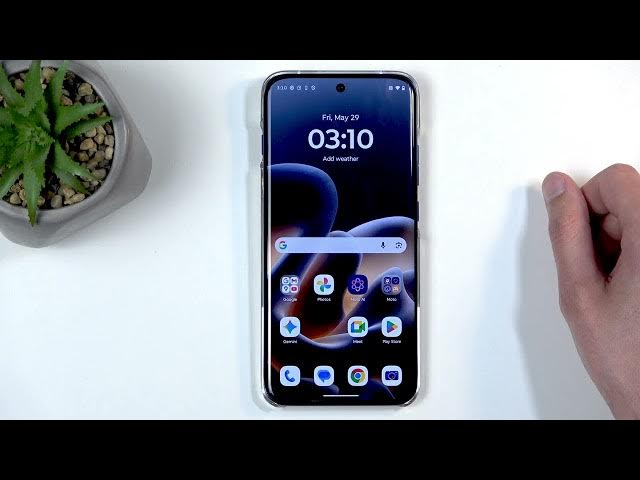
Motorola Edge 70 Pro, and today I'll
0:06
show you how you can capture a
0:07
screenshot on this device.
0:17
to get started, you will want to open up
0:19
content that you wish to capture.
0:22
Now, for me, I'll be using home screen
0:24
as an example for this, and it's already
0:26
open and visible on my screen. Just make
0:27
sure that whatever you want to actually
0:29
capture on that screenshot is right now
0:30
visible on the display, and once it is,
0:33
press the power button and volume down
0:36
This will get you a flash along with a
0:37
pop-up with things like edit, share,
0:39
delete options, and some crappy AI crap.
0:44
uh that was the pop-up, and if you don't
0:46
interact with it, it will disappear.
0:48
When it disappears, you can find that
0:50
captured screenshot by going into your
0:51
photos application, and no, I don't want
0:54
to update it. And in here, uh in the
0:57
photos tab, you might see the the
1:00
screenshot, uh which for me is right
1:03
But, uh when you are signed in to Google
1:06
account, uh this kind of look changes
1:08
just a little bit, so you'll have
1:10
another option in the middle right here,
1:12
which in there you'll find an album like
1:15
this one, screenshots. And in the album,
1:20
for some reason, uh this isn't the
1:24
but in there, you'll be able to find
1:25
only screenshots. Now, it is labeled
1:27
here as well, that's the album, so if I
1:29
click on it, it will take me to the
1:30
dedicated album, in which there are only
1:32
screenshots, and from here I can view
1:36
Now, for people that are now probably
1:38
watching this because
1:40
you were doing this, but for some reason
1:42
your screenshot wasn't taken,
1:44
uh your device isn't broken. Uh there is
1:47
a portion of it that is designed that
1:50
way. So, what is happening is the
1:52
application that you're probably trying
1:54
to capture has disabled uh feature
1:56
called, I believe it's drawing over at
1:58
other applications. Whatever it's called
2:00
doesn't really matter. But it's
2:03
functionality does. It prevents you from
2:05
being able to record screen or take a
2:09
And this is designed to protect the
2:11
privacy and security of the user.
2:13
It is most commonly going to be used in
2:16
bank applications which do this in case
2:20
you ever would have some kind of malware
2:21
on your device that would try to use
2:23
something like screenshots or screen
2:24
recordings to see what depends or
2:27
passwords you use to enter your bank.
2:31
Then you can imagine how that would be
2:32
very detrimental to your security if
2:34
they were able to see them. But they
2:36
can't so you're good to go.
2:38
And bank applications even though it
2:40
blocks screenshots taking or screen
2:41
recordings which you usually would want
2:43
to probably use to capture a screenshot
2:46
of a confirmation of a payment. Don't
2:48
worry, you can open up that payment and
2:50
then click on the more options which is
2:51
like three dots usually.
2:53
Kind of like these ones right here. And
2:55
just download a PDF that confirms it.
2:58
And that is basically equivalent to the
3:01
But there are other applications that do
3:03
this for different reason like well
3:05
almost every streaming platform. Things
3:12
They don't do it to protect your privacy
3:16
They do it to basically do the exact
3:18
opposite to your privacy and security
3:22
that any application that can change how
3:23
you can use your device without your
3:24
permission, explicit permission,
3:28
it's infringing on that freedom there.
3:32
they do it to protect themselves like
3:34
it's your like it's their god damn phone
3:36
that they just lent it to you
3:41
that's all nice and dandy but as far as
3:43
I'm aware you're trying to capture a
3:44
show on a application that you pay for
3:47
you're the one paying for it not the
3:49
other way god damn around. So there's no
3:50
reason for that to be happening. Um and
3:54
law called fair use, which should allow
3:56
you to capture screenshots or screen
3:58
recordings of the show that or movie
4:00
that you're watching and share it freely
4:04
uh as long as it falls under the fair
4:06
use, which is under specific time frame.
4:15
you won't be able to capture anything
4:16
and uh I don't want to kind of
4:22
I personally don't own any accounts for
4:25
any of the streaming platforms like
4:27
Netflix and all that stuff that I
4:28
mentioned. Uh I have never agreed to any
4:31
terms of service or use because I don't
4:32
own any of them, never did.
4:34
And uh the applications when opened,
4:37
they don't give you any pop-up to allow
4:41
which automatically, in my opinion,
4:42
means that Keep in mind, this is my
4:44
opinion. Uh I actually never have
4:47
freaking read the Google terms of
4:55
by you not agree giving any kind of
4:57
explicit permission to the application
4:58
itself to do this, it shouldn't be able
5:01
to do this, but it is.
5:03
So, for this, this kind of goes against
5:06
what I believe I should be able to do on
5:07
my device, so I'll be showing you how we
5:08
can circumvent this crap because, hey,
5:11
fair use exists for a reason. So, you
5:13
might as well be able to use it. So,
5:15
we're going to go into our browser,
5:21
basically immune to this crap because
5:23
browsers don't Let's say application,
5:26
right? So, application has the ability
5:28
to block this feature, browsers do not.
5:31
And whatever you open up on this browser
5:33
won't be affecting you.
5:37
what I'm about to show you is just kind
5:39
of like different sites that will allow
5:41
you to view this kind of content, but
5:43
just know that to view this kind of
5:45
content, let's say legally, even from
5:47
these sites, you would need to actually
5:49
own a subscription, as far as I'm aware.
5:51
If you are to view it without it, this
5:53
would actually be considered piracy for
5:55
moronic reason. Now, it's not just
5:58
sharing that is piracy, it's actually
5:59
sharing and viewing copyrighted content.
6:04
So, just be aware of that. And uh
6:09
one of the things that I search for is
6:10
pstream.mov alternatives. Reason for
6:13
that is don't go just to that domain, it
6:15
no longer functions. And the reason why
6:17
I'm kind of doing this way now because
6:19
this domain doesn't exist. It did when I
6:20
was recording videos at the beginning
6:22
for this, but no longer does. So, I'm
6:24
teaching you how to fish so I can feed
6:25
you for life rather than for a day. And
6:28
uh this way you can know how to search
6:31
for things to find, you know,
6:33
some different places. So, you can do
6:35
things like this, pstream alternatives,
6:37
or for instance, you can search for
6:38
something like free alternatives to
6:40
Netflix or HBO or other crap, right? And
6:43
you're going to be for the most part
6:47
piracy thread. Keep in mind, again, if
6:49
you're paying for a subscription, it's
6:53
uh and here you'll find a bunch of
6:56
So, there we go. Which can utilize and
6:58
depending how you search for what what
7:00
the search term that you're going to
7:01
use, you might have different results.
7:03
But you're primarily going to be looking
7:05
for Reddit, definitely not for AI
7:07
overviews or anything like that. This
7:09
doesn't give you anything useful there.
7:13
you can check out some sites right here
7:15
that are even listed. Um
7:17
not some of them don't work that great,
7:23
this will allow you to view any kind of
7:24
content from any kind of platform for
7:25
free under without needing to log in,
7:27
sign in, pay, or do anything. Just
7:30
click, play, capture, and move on.
7:33
So, there we go. And this circumvents
7:35
the crap that, for instance,
7:36
applications such as Netflix do impose
7:38
on you without your permission.
7:41
So, with that being said, I you found
7:43
this video helpful. And if you did,
7:45
don't forget to hit like, subscribe, and